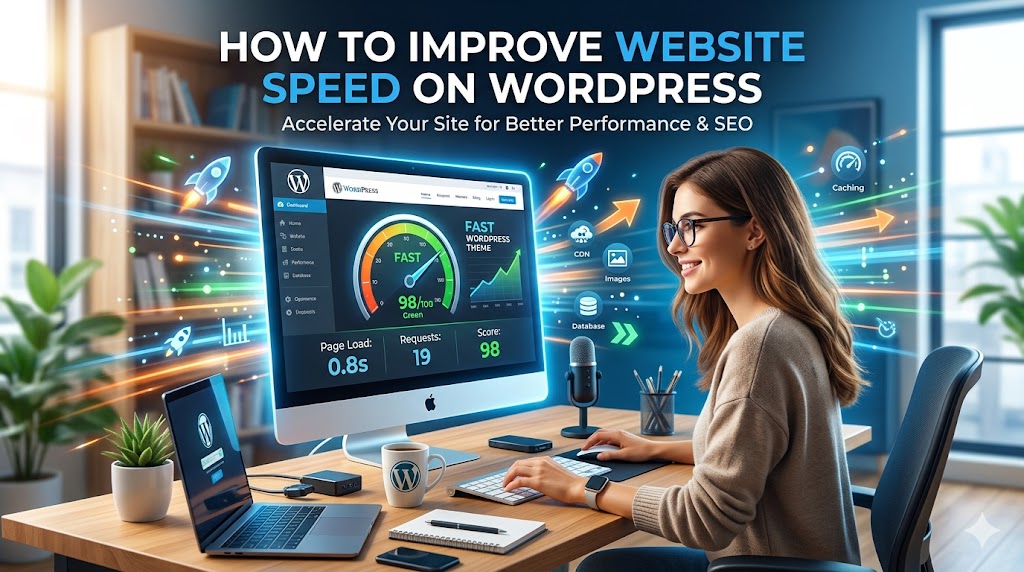
Slow WordPress websites cause frustration, bad SEO, and hidden conversion losses. It’s often only once people start seeing higher bounce rates and fewer visits when they finally understand just how important site speed is.
However, here’s the good part: You don’t have to start from scratch with your website to boost its speed.
Here, you will discover actionable methods for increasing WordPress website speed without having to redevelop anything from scratch in 2026.
Why Website Speed Matters More Than Ever
Website speed directly affects:
- User experience
- SEO rankings
- Conversion rates
- Mobile usability
Slow websites often cause:
- Higher bounce rates
- Lower engagement
- Fewer leads and sales
* Even a 1-second delay can impact conversions.
Step 1: Choose Better WordPress Hosting
Your hosting provider is the foundation of website performance.
Cheap hosting usually means:
- Slow servers
- Shared resources
- Poor uptime
* No plugin can fully fix bad hosting.
Look for hosting with:
- SSD storage
- Server-side caching
- Modern PHP versions
- CDN support
Step 2: Use a Lightweight Theme
Many WordPress themes are overloaded with:
- Animations
- Sliders
- Unnecessary scripts
* Fancy themes often destroy performance.
Better approach:
Choose themes focused on:
- Speed
- Clean code
- Mobile responsiveness
Step 3: Install a Caching Plugin
Caching reduces the amount of work your server does.
Benefits of caching:
- Faster page loading
- Reduced server load
- Improved user experience
* Caching is one of the easiest performance wins.
Step 4: Optimize Your Images
Large images are one of the biggest causes of slow websites.
Best practices:
- Compress images before upload
- Use modern formats like WebP
- Resize oversized images
Example:
<img src="hero-image.webp" loading="lazy" alt="optimized image">
* Lazy loading improves page speed significantly.
Step 5: Remove Unused Plugins
Too many plugins can:
- Slow down your site
- Increase database queries
- Create conflicts
Ask yourself:
“Do I actually need this plugin?”
* Fewer high-quality plugins usually perform better.
Step 6: Enable a Content Delivery Network (CDN)
A CDN stores copies of your website on global servers.
Benefits:
- Faster loading worldwide
- Reduced server stress
- Better performance for international visitors
* Especially important for larger websites.
Step 7: Minify CSS and JavaScript
Minification removes unnecessary characters from files.
This reduces:
- File sizes
- Load times
- HTTP requests
Example:
function hello(){console.log("fast website")}
* Smaller files load faster.
Step 8: Optimize Your Database
Over time, WordPress databases collect:
- Spam comments
- Post revisions
- Temporary data
* Cleaning your database improves efficiency.
Database optimization helps:
- Faster queries
- Reduced server load
- Better backend performance
Step 9: Keep WordPress Updated
Always update:
- WordPress core
- Themes
- Plugins
Updates often include:
- Performance improvements
- Security patches
- Compatibility fixes
* Outdated websites usually become slower over time.
Step 10: Limit Heavy Page Builders & Animations
Visual page builders can add:
- Extra scripts
- Excessive DOM elements
- Unnecessary styling
* Use animations carefully and keep layouts simple.
Step 11: Test Website Speed Properly
Use performance tools to identify bottlenecks.
Check:
- Core Web Vitals
- Largest Contentful Paint (LCP)
- Total Blocking Time (TBT)
- Mobile performance
* Don’t guess—measure.
Real-World Example
Before Optimization:
- 6-second load time
- Large uncompressed images
- 40+ plugins
After Optimization:
- 1.8-second load time
- Optimized assets
- Better mobile experience
* Small improvements add up quickly.
Common WordPress Speed Mistakes
1. Installing Too Many Plugins
More plugins ≠ better website.
2. Uploading Huge Images
Large images slow down every page.
3. Ignoring Mobile Performance
Most traffic now comes from mobile users.
4. Choosing Design Over Speed
Overdesigned websites often perform poorly.
Performance vs Features: Finding Balance
Many website owners want:
- Animations
- Popups
- Sliders
- Fancy effects
But every feature adds weight.
* The fastest websites are usually the simplest.
FAQ
What slows down a WordPress website the most?
Large images, poor hosting, too many plugins, and bloated themes are common causes.
Is caching necessary for WordPress?
Yes. Caching dramatically improves loading speed and server efficiency.
How fast should a WordPress website load?
Ideally under 2–3 seconds for good user experience and SEO performance.
Summary
Improving WordPress speed isn’t about one magic plugin—it’s about smart optimization across your entire website.
Key takeaway:
- Better hosting
- Optimized images
- Lightweight plugins/themes
- Proper caching
* These changes create faster, more reliable websites.
Take the Next Step
Start optimizing your website today:
- Test your current speed
- Remove unnecessary plugins
- Compress your images
- Enable caching and CDN support
* Even a few simple improvements can dramatically improve performance.
Build a faster WordPress website in 2026 and create a better experience for both users and search engines