Introduction
If you plan to create a website in 2026, chances are you will stumble upon WordPress—there’s a reason why it’s the most popular content management system on the planet, powering millions of websites around the globe.
However, as a beginner, it might seem intimidating trying to figure out where to start.
With this comprehensive guide, you will get everything you need to know about installing WordPress and getting it running.
What Is WordPress?
WordPress is a free content management system (CMS) that allows you to build websites without needing advanced coding skills.
You can create:
- Business websites
- Blogs
- Online stores
- Portfolios
- Membership sites
* It’s flexible, beginner-friendly, and highly customizable.
Step 1: Choose a Domain Name and Hosting
Before installing WordPress, you need:
- A domain name (your website address)
- A hosting provider (where your website lives online)
Example:
www.yourwebsite.com
Tips for Choosing a Domain:
- Keep it short
- Easy to remember
- Avoid numbers and hyphens
* Your domain becomes part of your brand identity.
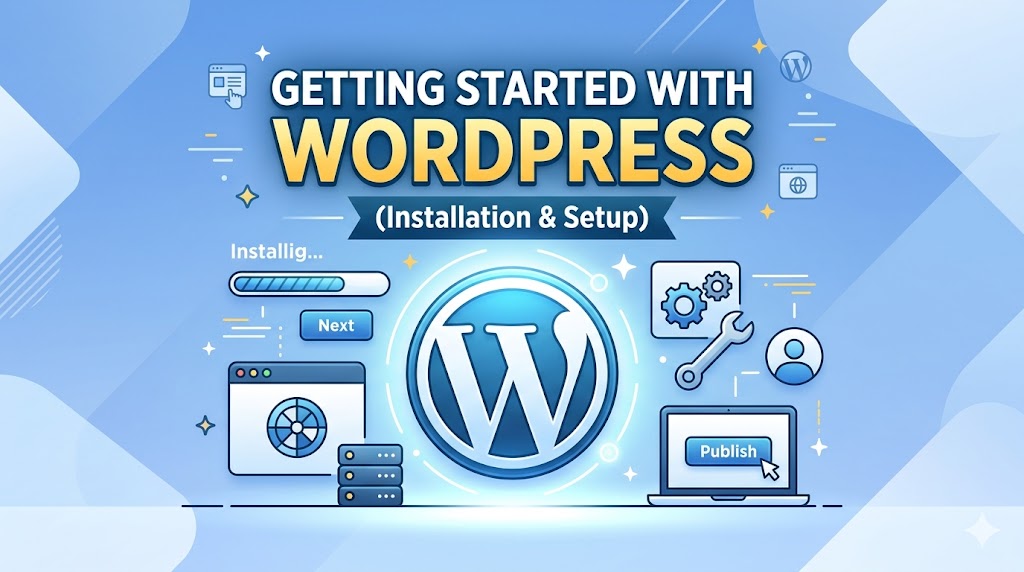
Step 2: Install WordPress
Most hosting providers offer one-click installation.
Typical installation process:
- Log into your hosting dashboard
- Open “WordPress Installer”
- Choose your domain
- Set admin username/password
- Click Install
* The setup usually takes less than 5 minutes.
Step 3: Log Into Your WordPress Dashboard
After installation, access your dashboard here:
yourwebsite.com/wp-admin
You’ll use this dashboard to:
- Create pages
- Publish blog posts
- Install themes and plugins
- Manage settings
* This becomes your website control center.
Step 4: Choose a Theme
A theme controls your website’s design and layout.
To install a theme:
- Go to Appearance → Themes
- Click “Add New”
- Search and install a theme
- Activate it
What to look for:
- Mobile responsiveness
- Fast loading speed
- Clean design
* Avoid bloated themes packed with unnecessary features.
Step 5: Install Essential Plugins
Plugins add functionality to your website.
Recommended starter plugins:
- SEO plugin
- Security plugin
- Backup plugin
- Performance/caching plugin
* Don’t install too many plugins—keep your setup lightweight.
Step 6: Configure Basic WordPress Settings
Go to:
Settings → General
Update:
- Site title
- Tagline
- Timezone
- Admin email
Settings → Permalinks
Choose:
/post-name/
* This creates SEO-friendly URLs.
Step 7: Create Important Pages
Every website should start with core pages.
Essential pages:
- Home
- About
- Services
- Contact
- Privacy Policy
* These pages build trust and improve navigation.
Step 8: Customize Your Navigation Menu
Menus help users explore your website.
To create a menu:
- Go to Appearance → Menus
- Add pages
- Arrange menu items
- Save menu
* Keep navigation simple and intuitive.
Step 9: Optimize for Mobile Devices
Most visitors browse on mobile.
Check:
- Font readability
- Button sizes
- Mobile responsiveness
* A website that works poorly on mobile loses users quickly.
Step 10: Improve Website Speed Early
Performance matters from the beginning.
Simple optimizations:
- Compress images
- Enable caching
- Use lightweight themes
Example:
<img src="image.webp" loading="lazy" alt="optimized image">
* Fast websites rank better and convert better.
Common Beginner Mistakes
1. Installing Too Many Plugins
This slows down your website.
2. Ignoring Security
Always use strong passwords and security plugins.
3. Using Poor Hosting
Cheap hosting often causes slow performance.
4. Forgetting Backups
Always keep regular backups of your site.
Real-World Advice for Beginners
One thing new WordPress users often underestimate:
* Simplicity wins.
You don’t need:
- Fancy animations
- Complex layouts
- 50 plugins
A clean, fast, easy-to-use website performs better almost every time.
FAQ
Is WordPress free?
Yes, WordPress itself is free, but hosting and domains cost money.
Do I need coding skills to use WordPress?
No. Most websites can be built without coding.
How long does WordPress setup take?
Basic setup can take less than an hour.
Summary
Getting started with WordPress is much easier than most beginners expect.
Key takeaway:
- Start simple
- Focus on speed and usability
- Build a clean foundation first
* The best websites grow over time—they don’t need to be perfect on day one.
What Should You Do Next? (CTA)
Now that you understand the basics:
- Buy your domain and hosting
- Install WordPress
- Set up your theme and plugins
- Publish your first pages
* Don’t spend weeks overthinking—start building and improve as you go.
Launch your WordPress website today and take the first step toward building your online presence