WordPress’ most compelling factor for many users is its plugins. It only takes a couple of clicks to add features like SEO tools, security, backup, form builder, and e-commerce capabilities.
However, there is one issue that many beginners fail to see:
👉 Excessive use of plugins, or the wrong type of plugins, can completely wreck your website’s performance, stability, and security.
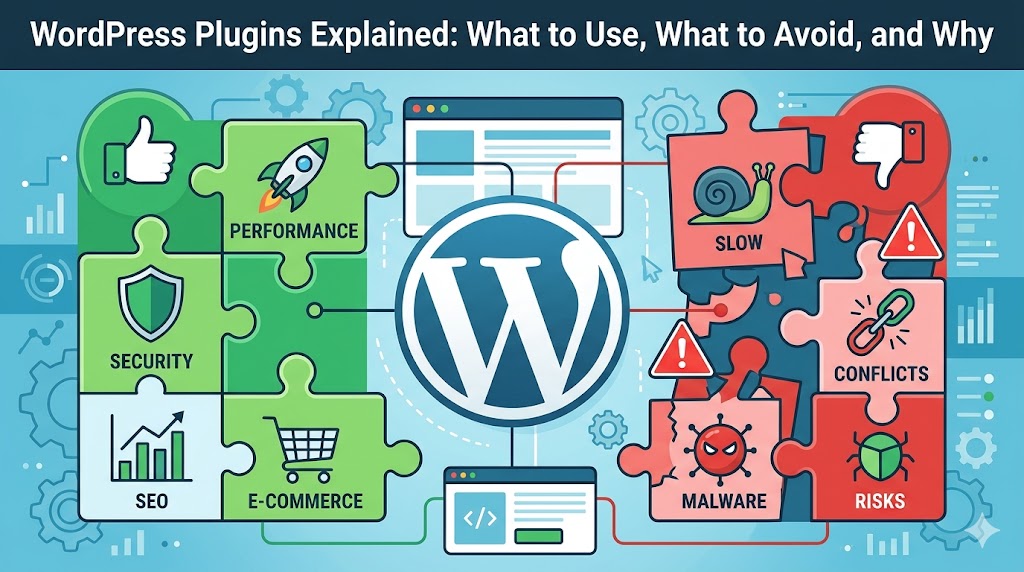
This article will show you the best WordPress plugins to use, which ones to steer clear from, and how to select plugins efficiently in 2026.
What Are WordPress Plugins?
Plugins are add-ons that extend the functionality of your WordPress website.
They allow you to:
- Improve SEO
- Add contact forms
- Speed up your site
- Secure your website
- Create online stores
* Think of plugins like apps for your website.
Why Plugins Matter More Than Most People Think
Good plugins can:
- Save development time
- Improve website performance
- Add powerful functionality
Bad plugins can:
- Slow down your website
- Create security risks
- Cause plugin conflicts
- Break updates
* Your plugin choices directly affect your website quality.
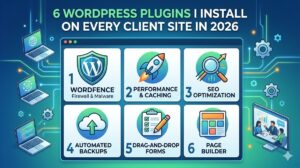
Plugins You SHOULD Use
1. SEO Plugins
Every website needs basic SEO optimization.
SEO plugins help with:
- Meta titles and descriptions
- XML sitemaps
- Schema markup
- Keyword optimization
* They make your content easier for search engines to understand.
Example:
<meta name="description" content="Professional WordPress development services">
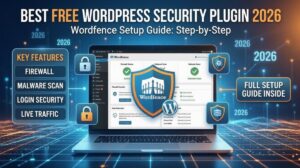
2. Security Plugins
Security plugins protect your site from:
- Malware
- Brute force attacks
- Spam bots
* Even small websites get attacked regularly.
3. Backup Plugins
Backups are non-negotiable.
A backup plugin helps you:
- Restore your website quickly
- Recover from hacks or crashes
- Prevent data loss
* Most people only realize they need backups after disaster happens.
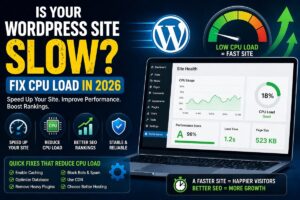
4. Caching & Performance Plugins
Website speed matters for:
- SEO
- User experience
- Conversions
Performance plugins improve:
- Page load speed
- File optimization
- Caching
Example:
<img src="image.webp" loading="lazy" alt="optimized image">
* Faster websites keep users engaged longer.
5. Form Plugins
Contact forms help users:
- Reach your business
- Request quotes
- Send inquiries
Keep forms simple:
<input type="email" placeholder="Your Email">
* Long forms reduce conversions.
Plugins You SHOULD Avoid
1. Heavy “All-in-One” Plugins
Some plugins try to do everything:
- SEO
- Security
- Optimization
- Analytics
* These often become bloated and slow.
2. Poorly Maintained Plugins
Avoid plugins that:
- Haven’t been updated recently
- Have low ratings
- Have compatibility issues
* Outdated plugins are major security risks.
3. Duplicate Functionality Plugins
Example:
- Two caching plugins
- Multiple SEO plugins
* This causes conflicts and performance problems.
4. Plugins You Don’t Actually Need
Many websites install:
- Fancy animations
- Sliders
- Unnecessary visual effects
* Most of these hurt performance more than they help UX.
How to Choose the Right Plugin
Before installing any plugin, ask:
✔ Is it actively updated?
✔ Does it have good reviews?
✔ Is the developer trustworthy?
✔ Do I REALLY need this feature?
* Simplicity usually wins.
Real-World Plugin Philosophy
Experienced developers often use:
- Fewer plugins
- Lightweight solutions
- Custom code when necessary
* More plugins does NOT mean a better website.
Common Plugin Mistakes
1. Installing Too Many Plugins
This is the most common issue.
2. Ignoring Plugin Updates
Updates often include:
- Security fixes
- Performance improvements
3. Using Pirated (“Nulled”) Plugins
These often contain:
- Malware
- Hidden backdoors
* Never use them on client or business sites.
Plugin Performance Example
Bad Setup:
- 40+ plugins
- Slow loading
- Frequent conflicts
Optimized Setup:
- 8–12 essential plugins
- Faster performance
- Easier maintenance
* Minimalism usually performs better.
Do Plugins Slow Down WordPress?
Not automatically.
What actually matters:
- Plugin quality
- Server resources
- Website optimization
* A few good plugins are better than dozens of poor ones.
FAQ
How many plugins should a WordPress site have?
There’s no exact number, but fewer high-quality plugins are better.
Are free plugins safe?
Many free plugins are excellent—as long as they’re actively maintained.
What’s the most important plugin type?
Security, backups, and performance plugins are essential for most websites.
Summary
WordPress Plugins are powerful—but they should be used strategically.
Key takeaway:
- Install only what you truly need
- Prioritize quality over quantity
- Keep your website lightweight and secure
* Smart plugin choices create faster, safer, more reliable websites.
What Should You Do Next? (CTA)
Audit your current website today:
- Remove unused plugins
- Check for outdated tools
- Keep only essential functionality
* Small cleanup changes can dramatically improve your website performance and security.
Build a smarter, faster WordPress website by choosing plugins wisely in 2026