Introduction
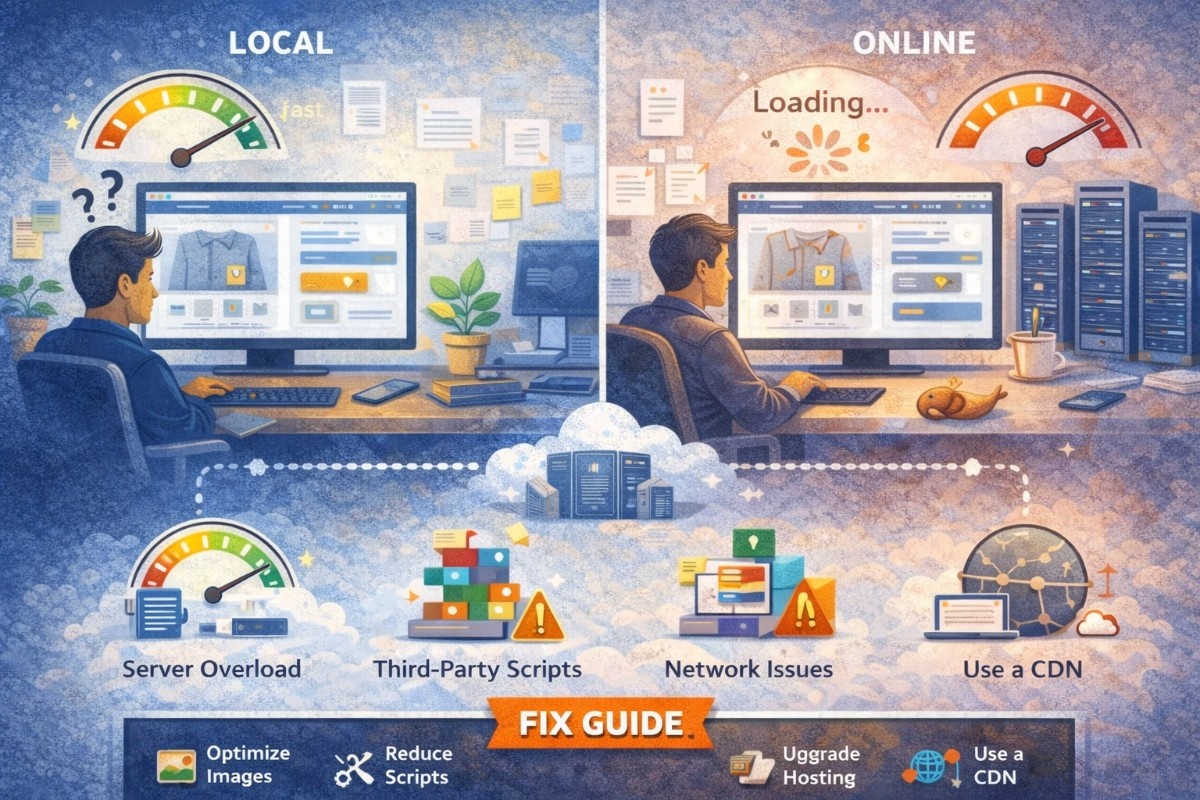
Have you ever noticed your website loads instantly on your local machine but becomes painfully slow once it’s live? This is a common issue developers and business owners face, especially during deployment.
The difference in performance comes down to multiple factors—server quality, network latency, unoptimized assets, and real-world traffic conditions. In this guide, we’ll break down why this happens and how to fix it step by step.
Why Websites Are Fast Locally
When you run a website locally:
- There is no network latency
- Files are accessed directly from your system
- No server limitations or shared resources
- No real traffic or load
👉 Everything runs in a controlled, high-speed environment.
Why Websites Become Slow Online
Once your site is live, it has to deal with real-world conditions.
1. Slow Hosting Server
Your hosting provider plays a major role in performance.
Problem:
- Cheap/shared hosting
- Limited CPU, RAM, bandwidth
Fix:
- Upgrade to better hosting (VPS or cloud)
- Use providers with fast SSD/NVMe storage
- Choose servers closer to your audience
2. No Content Delivery Network (CDN)
Without a CDN, all users access your server from one location.
Problem:
- High latency for distant users
Fix:
- Use CDN services like Cloudflare or AWS CloudFront
- Distribute content across global servers
3. Unoptimized Images
Large images are one of the biggest causes of slow websites.
Problem:
- High-resolution images not compressed
- No lazy loading
Fix:
- Compress images (WebP format recommended)
- Use lazy loading
- Resize images before uploading
4. Too Many HTTP Requests
Every CSS, JS, image, or font file adds a request.
Problem:
- Increased load time due to multiple requests
Fix:
- Minify CSS & JS
- Combine files where possible
- Remove unused scripts
5. No Caching
Local environments often cache automatically, but live servers may not.
Problem:
- Pages reload completely every time
Fix:
- Enable browser caching
- Use server-side caching (LiteSpeed, Redis, etc.)
- Use caching plugins (for WordPress)
6. Poor Database Optimization
A slow database can delay page loading.
Problem:
- Large, unoptimized tables
- Slow queries
Fix:
- Optimize database regularly
- Use indexing
- Clean unused data
7. Heavy JavaScript & CSS
Too many scripts can block rendering.
Problem:
- Render-blocking resources
- Large JS bundles
Fix:
- Defer or async JavaScript
- Remove unused CSS
- Use code splitting
8. No GZIP/Brotli Compression
Without compression, files are larger than necessary.
Fix:
- Enable GZIP or Brotli compression on server
9. DNS & SSL Delays
Every request involves DNS lookup and SSL handshake.
Problem:
- Slow DNS provider
- Improper SSL setup
Fix:
- Use fast DNS (like Cloudflare)
- Optimize SSL configuration
10. No Performance Testing
You might not even know what’s slowing your site.
Fix:
Use tools like:
- Google PageSpeed Insights
- GTmetrix
- Lighthouse
Step-by-Step Fix Guide
Step 1: Test Your Website
Run your site through performance tools and identify bottlenecks.
Step 2: Optimize Images
Convert images to WebP and compress them.
Step 3: Enable Caching
Use browser caching + server caching.
Step 4: Use a CDN
Serve static files from global servers.
Step 5: Minify Assets
Reduce CSS, JS, and HTML file sizes.
Step 6: Upgrade Hosting
Switch to faster hosting if needed.
Step 7: Optimize Database
Clean and index your database.
Step 8: Reduce Plugins & Scripts
Remove unnecessary plugins and third-party scripts.
Real Example
Scenario: WordPress Website
Problem:
- Slow loading (5–8 seconds)
Fix Applied:
- Installed caching plugin
- Compressed images
- Enabled CDN
- Reduced plugins
Result:
- Load time reduced to under 2 seconds
Pro Tips
- Use lazy loading for images and videos
- Enable HTTP/2 or HTTP/3
- Preload important resources
- Use lightweight themes and frameworks
- Monitor performance regularly
Conclusion
Your website feels fast locally because it avoids real-world limitations like network delays, server performance, and traffic. Once deployed, these factors come into play and can significantly impact speed.
The good news? With the right optimizations—better hosting, CDN, caching, and asset optimization—you can make your live website just as fast (or even faster) than your local version.