Have you ever attempted to manually add any tracking codes to your website? You know that every time a new tracking code is added, the site will look like a mess.
This is where Google Tag Manager comes in handy.
This article is a simple guide on Google Tag Manager and how to use it without requiring any coding knowledge at all.
What Is Google Tag Manager?
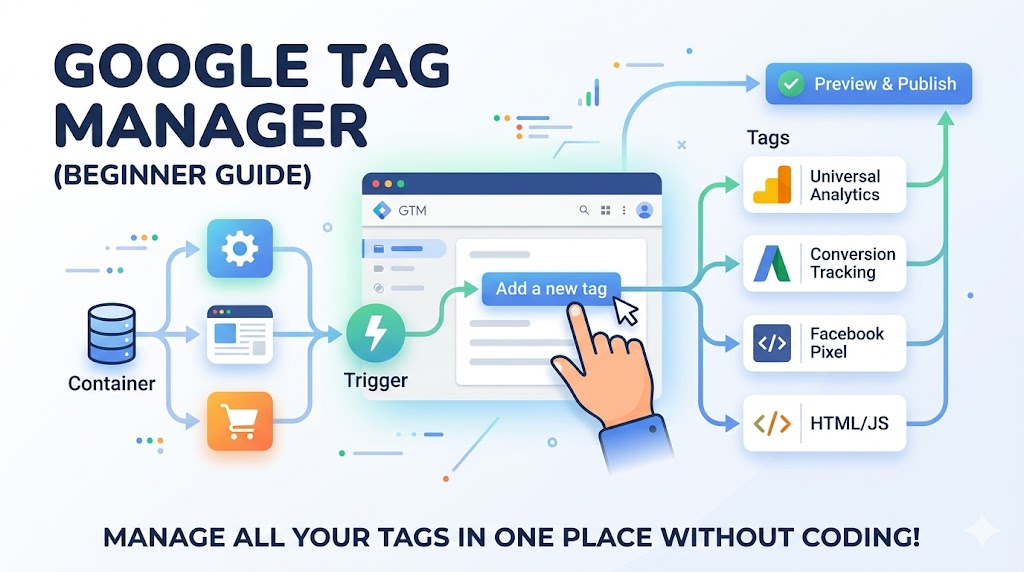
Google Tag Manager (GTM) is a free tool that helps you manage tracking codes—called “tags”—from one central dashboard.
Instead of editing website code manually:
You can:
- Add Google Analytics
- Track conversions
- Install Facebook Pixels
- Monitor button clicks
- Set up marketing tags
* All without constantly editing your website files.
Why Businesses Use Google Tag Manager
GTM helps you:
- Manage tracking more efficiently
- Reduce developer dependency
- Launch marketing tools faster
- Organize analytics in one place
* It saves time and reduces errors.
Step 1: Create a Google Tag Manager Account
Go to:
tagmanager.google.com
Setup process:
- Create an account
- Add your website name
- Choose “Web” as platform
- Accept terms and continue
* GTM will generate two code snippets.
Step 2: Install GTM on Your Website
Google provides:
- One script for the
<head>section - One noscript tag for the
<body>section
Example:
<script>
(function(w,d,s,l,i){w[l]=w[l]||[];
w[l].push({'gtm.start':
new Date().getTime(),event:'gtm.js'});
})(window,document,'script','dataLayer','GTM-XXXX');
</script>
* Place these correctly to ensure tracking works properly.
Step 3: Understand the Core GTM Concepts
Before creating tags, understand the basics.
GTM has 3 core parts:
| Component | Purpose |
|---|---|
| Tags | What you want to track |
| Triggers | When tracking should happen |
| Variables | Extra information GTM uses |
* These three pieces work together.
Step 4: Add Google Analytics to GTM
One of the most common uses of GTM is connecting analytics.
Basic process:
- Create a new Tag
- Choose Google Analytics
- Add Measurement ID
- Set trigger to “All Pages”
- Save and publish
* This tracks website visits automatically.
Step 5: Create a Button Click Tracking Event
You can track user interactions like:
- Button clicks
- Form submissions
- Downloads
Example trigger:
Click Classes contains "cta-button"
* This helps measure engagement and conversions.
Step 6: Use Preview Mode Before Publishing
Never publish changes blindly.
GTM Preview Mode allows you to:
- Test tags safely
- Verify triggers
- Debug issues in real time
* This is one of the most important GTM features.
Step 7: Publish Your Container
Once testing is complete:
- Click Submit
- Add version name
- Publish changes
* Your tags now become active on the website.
Common Things You Can Track with GTM
Marketing & Analytics Tracking:
- Page views
- Scroll depth
- Form submissions
- Button clicks
- Video views
- Purchase conversions
* GTM centralizes website tracking beautifully.
Why GTM Is Better Than Manual Tracking
Without GTM:
- Every tracking change needs code edits
- Developers get involved constantly
- Errors become more common
With GTM:
- Faster updates
- Easier management
- Cleaner workflows
* Especially useful for marketing teams.
Real-World Example
Without GTM:
A business manually installs:
- Analytics code
- Facebook Pixel
- Conversion tracking
Result:
- Messy code
- Difficult updates
With GTM:
Everything is managed from one dashboard.
* Cleaner, faster, easier.
Common Beginner Mistakes
1. Publishing Without Testing
Always use Preview Mode first.
2. Adding Duplicate Tags
Duplicate analytics tracking causes inaccurate data.
3. Tracking Too Many Events
Collect useful data—not random data.
4. Ignoring Naming Structure
Use organized naming for tags and triggers.
* Clean setups are easier to manage later.
GTM Best Practices
Keep your setup organized
Use descriptive names
Test before publishing
Remove unused tags regularly
* Good organization prevents future confusion.
Is Google Tag Manager Difficult to Learn?
Not really.
Beginners usually struggle most with:
- Understanding triggers
- Event tracking logic
- Debugging setup mistakes
* But once the basics click, GTM becomes much easier.
FAQ
Is Google Tag Manager free?
Yes. GTM is completely free to use.
Do I need coding skills for GTM?
Basic understanding helps, but many setups require little to no coding.
What’s the difference between Google Analytics and GTM?
Google Analytics collects data; GTM helps manage tracking implementation.
Summary
Google Tag Manager simplifies website tracking and gives businesses more control over analytics and marketing tools.
Key takeaway:
- Easier tracking management
- Faster implementation
- Better organization
- Reduced dependency on developers
* GTM has become an essential tool for modern websites in 2026.
What Should You Do Next? (CTA)
Start simple:
- Create your GTM account
- Install it on your website
- Connect Google Analytics
- Experiment with basic event tracking
👉 The sooner you understand your website data, the better decisions you can make.