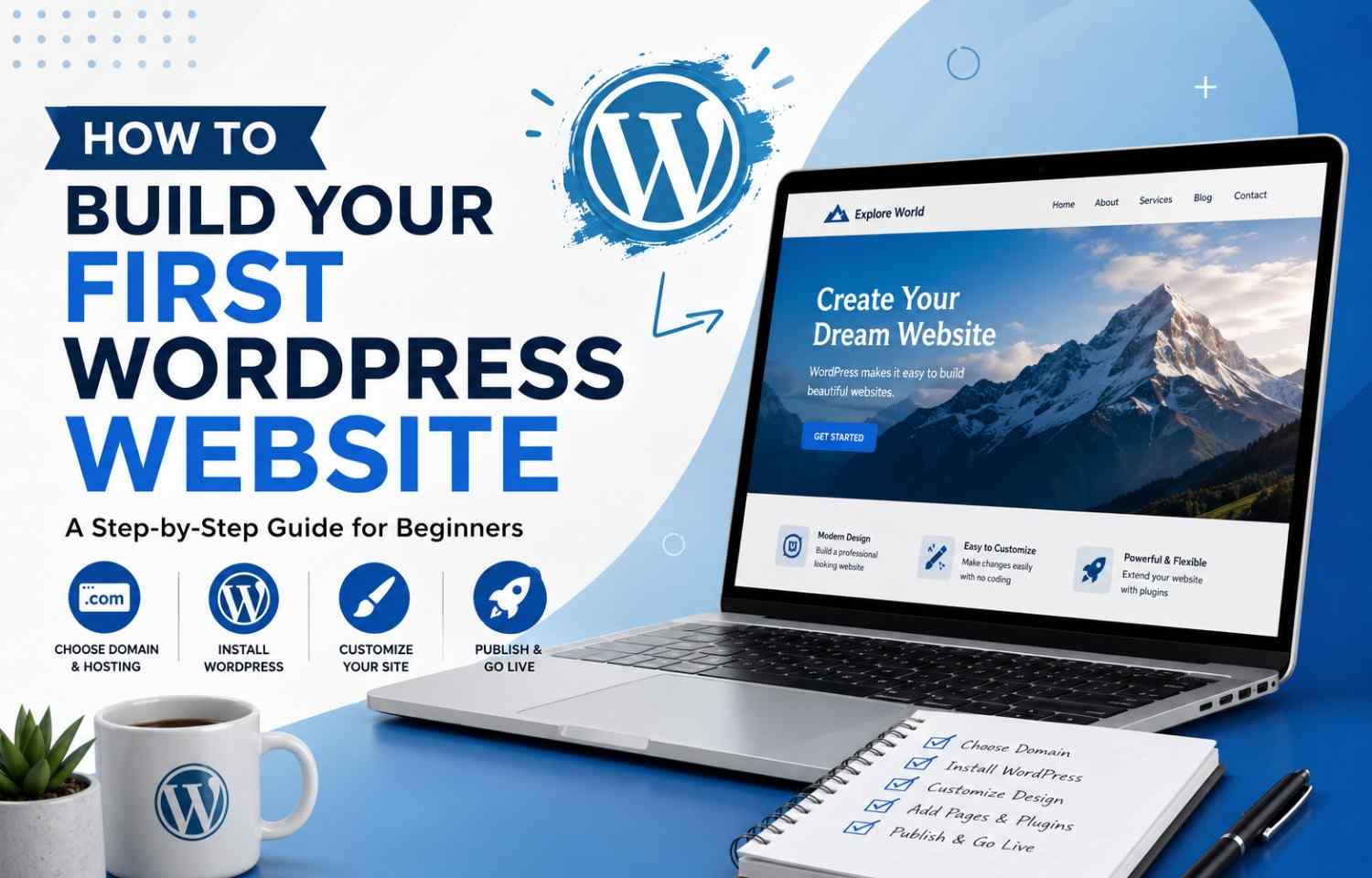
Making your first WordPress website might feel messy or confusing at the start , but once you follow a sensible routine it gets easier pretty fast. Whether you’re trying to run a personal blog, a business site, a portfolio page, or even a small online shop, WordPress gives you that kind of freedom where you can create a clean , pro looking website without having to learn coding.
In this walkthrough, you’ll go from picking a domain , to publishing your pages so real people can actually see them. At the end you should have a working website, ready to welcome visitors.
So why use WordPress in the first place?
WordPress is one of the most used website building platforms out there. There are millions of sites online that run on it because it is:
* beginner friendly
* SEO friendly
* easy to customize
* good on mobile
* backed by tons of themes, and plugins
It can fit almost any kind of project like:
* blogs
* business websites
* portfolios
* e commerce stores
* news websites
* education platforms
Step 1: Pick a domain name + hosting
The very first step is to choose:
1. A domain name (the address people type)
2. A hosting provider (where your site files basically live)
Example
* Domain: `mytravelblog.com`
* Hosting: a server that keeps your website online 24/7
Tips for choosing a domain name
* make it short, and not over complicated
* avoid numbers and hyphens
* add words related to your niche
* keep it memorable
Common hosting companies people start with:
* Bluehost
* Hostinger
* SiteGround
Most hosts also offer a one-click setup for WordPress, which makes the whole process a lot calmer for beginners.
Step 2: Install WordPress
After you buy hosting, you install WordPress from your hosting dashboard.
Most panels have something like:
* “Install WordPress”
* “One-Click Install”
* “Auto Installer”
When it’s done, log in to your WordPress admin area.
WordPress login link example
https://yourwebsite.com/wp-admin
Inside the admin dashboard, you manage everything, your content, theme changes, plugins , and the settings.
Step 3: Choose a WordPress theme
A theme decides how your website looks, including layout, colors, and overall vibe.
You can grab free themes from the WordPress theme directory, or you can upload premium themes you bought elsewhere.
Beginner friendly themes you might try
* Astra
* GeneratePress
* OceanWP
How to install a theme
Go to:
Appearance → Themes → Add New
Search the theme, then click:
Install → Activate
What a “good” theme typically offers
* fast loading
* responsive layout on mobile
* built with SEO in mind
* simple customization options
* works with popular plugins
Step 4: Customize your website design
Once the theme is active, you can tweak things using the WordPress Customizer.
Navigate to:
Appearance → Customize
From there you can adjust:
* logo
* colors
* typography
* header section
* footer section
* homepage settings
Example
Upload your business logo, then set brand colors so the website looks consistent.
Many modern themes also support drag and drop page builders like:
* Elementor
* WPBakery Page Builder
These tools let you design pages visually, without needing code.
Step 5: Create your main website pages
Every professional website usually includes a handful of core pages.
Essential pages (you should create)
| Page | Purpose |
|---|---|
| Home | Introduces your website |
| About | Shares information about you or your business |
| Services | Explains your offerings |
| Blog | Publishes articles and updates |
| Contact | Allows visitors to reach you |
How to create a page
Go to:
Pages → Add New
Write your content, then click:
Publish
Step 6: Install important WordPress plugins
Plugins add extra features to your site.
Plugins recommended for beginners
| Plugin | Purpose |
|---|---|
| Yoast SEO | Improves SEO |
| WPForms | Creates contact forms |
| WooCommerce | Builds online stores |
| UpdraftPlus | Creates backups |
| Wordfence | Enhances security |
How to install plugins
Go to:
Plugins → Add New
Type the plugin name, then choose:
Install → Activate
Try not to install too many plugins at once, because too many can make your website slower.
Step 7: Do basic SEO for your website
SEO (Search Engine Optimization) helps you rank higher on search engines like Google.
Simple SEO tips in WordPress
* use search-engine friendly URLs
* add keywords in a natural way
* optimize images
* write solid content
* use headings properly
* use an SEO plugin
Example of a SEO friendly URL
https://yourwebsite.com/wordpress-website-guide
Example of a bad URL
https://yourwebsite.com/?p=123
If you follow good SEO habits you’ll attract more visitors in a more organic way, over time.
Step 8: Make sure your site is mobile friendly
Most visitors browse from phones now, so your website should work on every screen size.
Mobile friendly things to check
* responsive design
* text that is actually readable
* fast loading speed
* images that scale properly
* navigation that’s not annoying to use
You can test it using your browser’s mobile preview mode, just open dev tools and switch to that view.
Step 9: Boost Website Speed, and tighten Security
If your website feels slow or kind of shaky security wise, it can mess with user experience as well as SEO rankings. And yeah, people notice, even if they don’t say it.
Tips to Improve Website Speed
* Compress images
* Use caching plugins, and don’t overthink it too much
* Pick fast hosting
* Remove unused plugins, from time to time
* Optimize databases
Security Best Practices
* Use strong passwords
* Keep WordPress updated
* Enable backups, automatically if possible
* Install security plugins
* Use SSL certificates
A secure website is basically protecting your data, and also your visitors too, without drama.
Step 10: Publish and then Keep Maintaining Your Website
Once everything looks ready, publish your website and keep it updated fairly often. Not “someday”, more like a routine.
Regular Maintenance Tasks
* Update plugins and themes
* Backup website files
* Publish new blog content
* Look for broken links, and fix them
* Monitor website speed
Maintenance matters a lot, for performance , SEO and security too. It’s not just a “nice to have”.
Making your first WordPress website is usually simpler than most beginners assume. If you go with the right hosting, install WordPress, choose a responsive theme, and add helpful plugins, you can end up with a professional site without needing advanced technical skills.
The trick is to start simple, then improve your website little by little, over time. As you get more comfortable, you can try more advanced stuff like custom designs, online store functionality, and SEO tuning.
Ready to Build Your Website?
Begin with a domain name and hosting provider today. Next, install WordPress and start building your online presence step by step. With consistency, and a little practice, you can create a fast, modern, and successful website using WordPress.