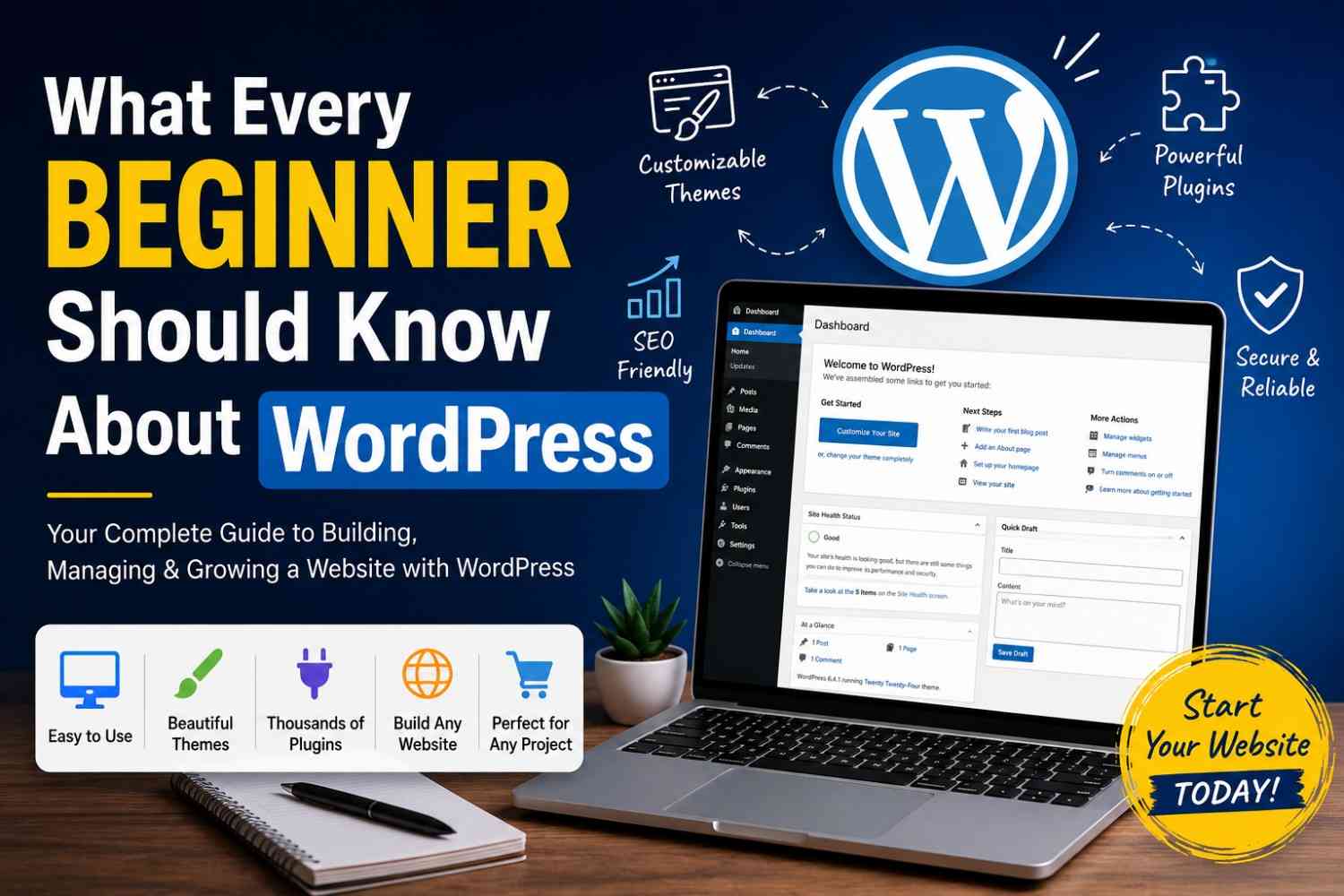
If you’re thinking about putting together a website, blog, portfolio, or even an online store, chances are you’ve probably ran into WordPress already. It runs millions of sites across the world and stays one of the more beginner friendly choices for building a website, honestly.
In this little guide, you’ll go through what a beginner really should know about WordPress, like how it works, why people keep picking it, which features matter most, what mistakes to steer clear of, and some practical tips so you can start without too much stress.
Whether your plan is a personal writing corner or a full business site, this beginner-friendly approach should help you get WordPress figured out with confidence.
What Is WordPress?
WordPress is an open-source Content Management System (CMS) that helps people create and run websites without needing deep coding skills.
It first showed up as a blogging tool, but WordPress grew into a full website building solution used for:
* Blogs
* Business websites
* E-commerce shops
* Portfolios
* News sites
* Online learning spaces
Right now, WordPress is often seen as one of the easiest yet most flexible platforms out there.
WordPress.org vs WordPress.com
New users frequently mix up WordPress.org and WordPress.com, and yeah it’s confusing at first.
WordPress.org
WordPress.org gives you the self-hosted version of WordPress.
To use it, you usually need:
* Web hosting
* A domain name
* Installation (you do it manually)
The upside is you get full control over the whole site.
WordPress.com
WordPress.com is hosted for you, so you don’t manage the hosting layer yourself.
It tends to be easier for beginners, but you hit limits unless you move to premium tiers.
Beginner Recommendation
If you want room to grow, most developers suggest WordPress.org for long-term flexibility.
Why Is WordPress So Popular?
People use WordPress for a bunch of reasons, both beginners and pros.
1. Easy to Use
The admin dashboard is pretty straightforward even for people who aren’t technical.
You can:
* publish posts
* upload images
* install themes
* add plugins
All that, without writing code.
2. Thousands of Themes
Themes basically set the look of your site.
Some well-known theme providers are:
* ThemeForest
* Elegant Themes
* Astra
You can go with free or paid themes depending on what you’re making.
3. Powerful Plugins
Plugins add extra functionality to WordPress.
Common examples are:
* SEO add-ons
* Contact forms
* Security tools
* E-commerce building blocks
Some popular plugin choices are:
* WooCommerce
* Elementor
* Yoast SEO
Essential Things Beginners Should Learn First
Before you start building, there are a few basics worth knowing.
1. Choosing the Right Hosting
Your host will influence:
* speed
* security
* uptime
* overall performance
Some hosting providers people commonly use:
* Hostinger
* SiteGround
* Bluehost
When you pick a plan, try to look for features like:
* free SSL
* daily backups
* one-click WordPress install
* helpful customer support
2. Understanding Themes and Customization
Themes shape how your website appears.
You can change things like:
* colors
* fonts
* headers
* menus
* page layouts
Many modern themes pair well with drag-and-drop builders such as Elementor.
Example Workflow
Install Theme → Customize Design → Add Pages → Publish Website
That kind of simple routine helps beginners ship a decent-looking site pretty fast.
3. Installing Plugins Carefully
One common beginner mistake is installing way too many plugins.
If you add too many, it can lead to:
* slower load times
* plugin conflicts
* extra security exposure
Best Practice
Only install the plugins you actually need, and remove ones you don’t use.
4. Learning Basic SEO
SEO (Search Engine Optimization) helps your pages show up higher in search results.
For beginners, some key SEO basics include:
* writing clear page titles
* using keywords in a natural way
* optimizing images
* creating pages that load quickly
* adding meta descriptions
SEO plugins like Yoast SEO make it simpler for beginners.
5. Keeping WordPress Updated
WordPress releases updates for:
* security patches
* bug fixes
* performance improvements
Make sure you keep things updated:
* WordPress core
* themes
* plugins
This lowers the risk of security problems.
Understanding the WordPress Dashboard
The dashboard is basically your site’s control room.
Key areas include:
| Section | Purpose |
|---|---|
| Posts | Blog articles |
| Pages | Static pages like About or Contact |
| Media | Images and videos |
| Appearance | Themes and menus |
| Plugins | Add features |
| Settings | Site configuration |
Before you attempt complicated layouts, beginners should spend a little time browsing these sections.
WordPress Page Builders Explained
Many beginners use page builders to make layouts visually, without touching a bunch of code.
Popular page builder tools include:
* Elementor
* WPBakery Page Builder
* Divi
These let you design by dragging elements around.
Example
Instead of typing HTML by hand, you can do something like this:
<h1>Welcome to My Website</h1>
<p>This is my homepage.</p>
Using Elementor, you can place and format text blocks on the page just by moving them around.
Common Mistakes Beginners Should Avoid
1. Ignoring Backups
Keep regular backups of your website, always.
2. Using Weak Passwords
Use strong passwords and turn on two-factor authentication if you can.
3. Installing Random Themes
Only get themes and plugins from places you trust.
4. Forgetting Mobile Optimization
Your site should look good and work properly on phones and tablets.
5. Neglecting Website Speed
If your site is slow, users bounce faster, and SEO can suffer too.
To improve speed, use things like:
* optimized images
* caching plugins
* lightweight themes
Is WordPress Good for Beginners?
Yeah, WordPress can be really good for beginners, because it kind of mixes simple setup with enough flexibility so you don’t feel trapped too fast. It’s one of those platforms that helps you learn while you’re actually building something, not just reading instructions or watching videos all day.
You can start with smaller things, then add more stuff as you go, like
* managing a website
* SEO basics
* blogging
* customizing the design
* even setting up e-commerce
And as your skills get better, WordPress basically keeps up with you, it doesn’t suddenly become “too much” on day one.
In 2026 WordPress is still among the best website-building options for new users. The main reasons are the easy-to-follow interface , the massive plugin ecosystem and the fact you can reshape things pretty freely when you need to.
But, the real key is… don’t overdo it too quickly, just begin simply:
* pick solid hosting
* choose a light theme
* install only essential plugins
* learn basic SEO
* keep updates turned on and your site current
Over time, you’ll get more confident, and managing plus expanding the site will feel a lot more normal.
Honestly, the fastest way to learn WordPress is hands-on practice. Like actually doing the steps, even if you mess up a little at first, it’s how it sticks.
Your next steps could look like this:
1. buy a domain and hosting plan
2. install WordPress
3. choose a beginner-friendly theme
4. make your first pages
5. publish your website
The sooner you start tinkering with WordPress, the quicker you’ll develop real, practical website-building skills that you can use immediately.