Consistency in content production is one of the most difficult tasks facing the owner of a WordPress site. Regardless of whether you’re operating a blog, an agency, or an e-commerce platform, content production will require your time and effort.
This is where the use of ChatGPT in WordPress becomes revolutionary.
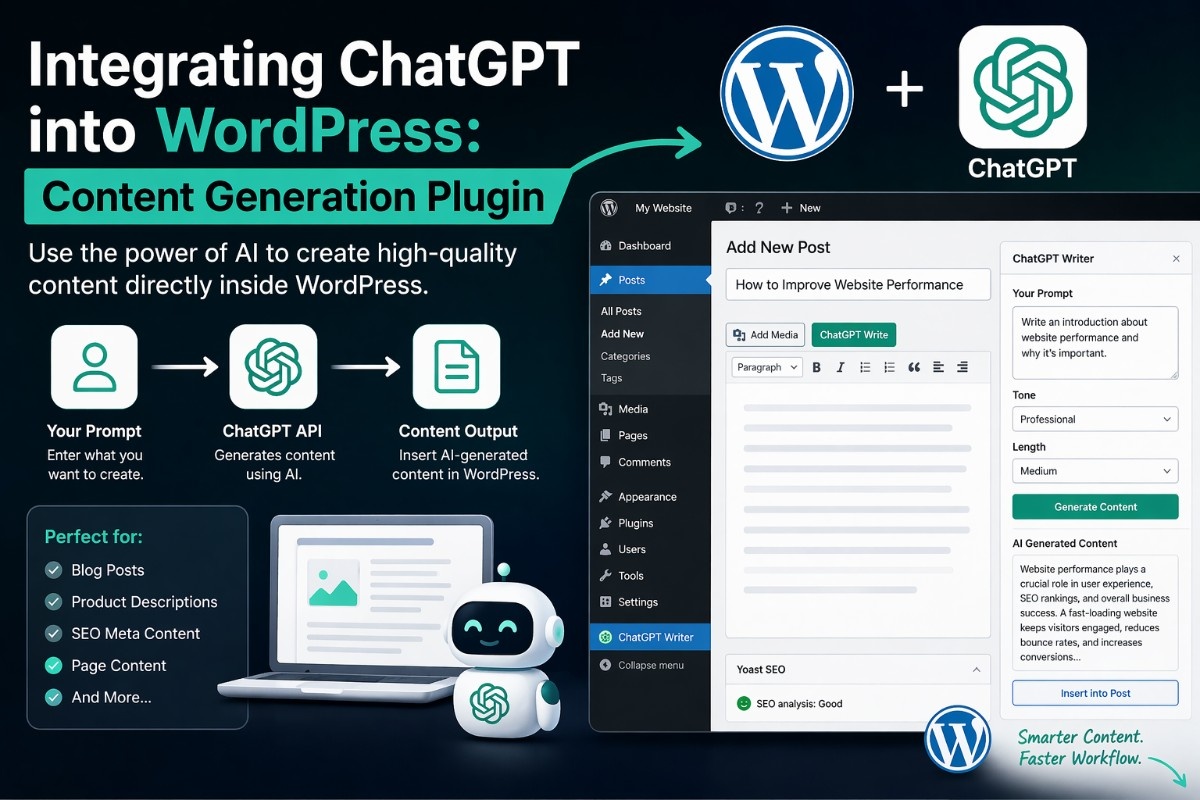
In this guide, I’ll walk you through how to use ChatGPT in WordPress via the custom content production plugin.
What Does ChatGPT Integration in WordPress Mean?
Using ChatGPT in WordPress involves linking your website to an artificial intelligence model through an application programming interface (API), enabling you to:
- Generate blog posts
- Create product descriptions
- Write SEO meta content
- Automate repetitive writing tasks
In simple terms: WordPress becomes your publishing platform, and ChatGPT becomes your writing assistant.
Why Integrate ChatGPT into WordPress?
1. Faster Content Creation
Generate drafts in seconds instead of hours.
2. Consistent Publishing
Never run out of ideas or content.
3. SEO Support
Create optimized titles, descriptions, and outlines.
4. Workflow Automation
Reduce manual effort for repetitive tasks.
How ChatGPT Integration Works (Simple Overview)
Step 1: Get API Access
You’ll need an API key from OpenAI.
Step 2: Create a WordPress Plugin
This plugin connects your WordPress dashboard to ChatGPT.
Step 3: Send Requests to API
Your plugin sends prompts and receives generated content.
Step 4: Display or Insert Content
Output is inserted into the WordPress editor.
Step-by-Step: Build a ChatGPT WordPress Plugin
Step 1: Create Plugin File
Go to /wp-content/plugins/ and create a folder:
chatgpt-content-generatorInside it, create:
chatgpt-content-generator.phpStep 2: Basic Plugin Setup
<?php
/**
 * Plugin Name: ChatGPT Content Generator
 */

add_action('admin_menu', function() {
    add_menu_page('ChatGPT Generator', 'ChatGPT', 'manage_options', 'chatgpt-generator', 'chatgpt_page');
});

function chatgpt_page() {
    echo '<h1>Generate Content with ChatGPT</h1>';
    echo '<form method="post">';
    echo '<textarea name="prompt" rows="5" cols="50"></textarea><br>';
    echo '<input type="submit" value="Generate">';
    echo '</form>';

    if (isset($_POST['prompt'])) {
        $response = chatgpt_generate($_POST['prompt']);
        echo '<h3>Output:</h3><p>' . $response . '</p>';
    }
}
Step 3: Connect to ChatGPT API
function chatgpt_generate($prompt) {
    $api_key = 'YOUR_API_KEY';

    $response = wp_remote_post('https://api.openai.com/v1/chat/completions', [
        'headers' => [
            'Authorization' => 'Bearer ' . $api_key,
            'Content-Type' => 'application/json'
        ],
        'body' => json_encode([
            'model' => 'gpt-4o-mini',
            'messages' => [
                ['role' => 'user', 'content' => $prompt]
            ]
        ])
    ]);

    $body = json_decode(wp_remote_retrieve_body($response), true);
    return $body['choices'][0]['message']['content'] ?? 'No response';
}
*This is the core of your ChatGPT WordPress integration.
Step 4: Insert Content into Editor
You can enhance your plugin to:
- Insert content directly into WordPress posts
- Save drafts automatically
- Generate SEO metadata
Example Use Case
Input:
Write a blog intro about website performanceOutput:
A clean, ready-to-use introduction that you can publish or edit.
* This saves hours of manual writing.
Best Practices for ChatGPT Integration
1. Always Edit Output
AI generates drafts—not final content.
2. Use Structured Prompts
Better prompts = better results.
Example:
Write a 150-word SEO-friendly intro about WordPress speed optimization.3. Limit API Calls
Avoid unnecessary requests to control costs.
4. Secure Your API Key
Never expose it publicly in your code.
Common Challenges (And Fixes)
API Not Responding
- Check API key
- Verify request format
Poor Content Quality
- Improve prompts
- Add context
Plugin Errors
- Enable WordPress debug mode
- Check server logs
SEO Tips for AI-Generated Content
To keep your content ranking high:
- Add your focus keyword naturally
- Rewrite sections in your own tone
- Add internal links
- Include FAQs
* AI should assist—not replace your voice.
FAQ
Can I use ChatGPT directly inside WordPress?
Yes, by integrating it via API or plugins.
Is ChatGPT integration free?
No, API usage is based on pricing.
Does AI content rank on Google?
Yes, if it’s helpful, optimized, and human-edited.
Summary
Integrating ChatGPT into WordPress helps you:
- Create content faster
- Automate workflows
- Improve productivity
But the key is using it wisely—combine AI efficiency with human creativity.
👉 Build the basic plugin from this guide
👉 Test content generation inside WordPress
👉 Improve prompts and workflow
Once you get comfortable, you can expand it into:
- SEO tools
- Full content automation systems