

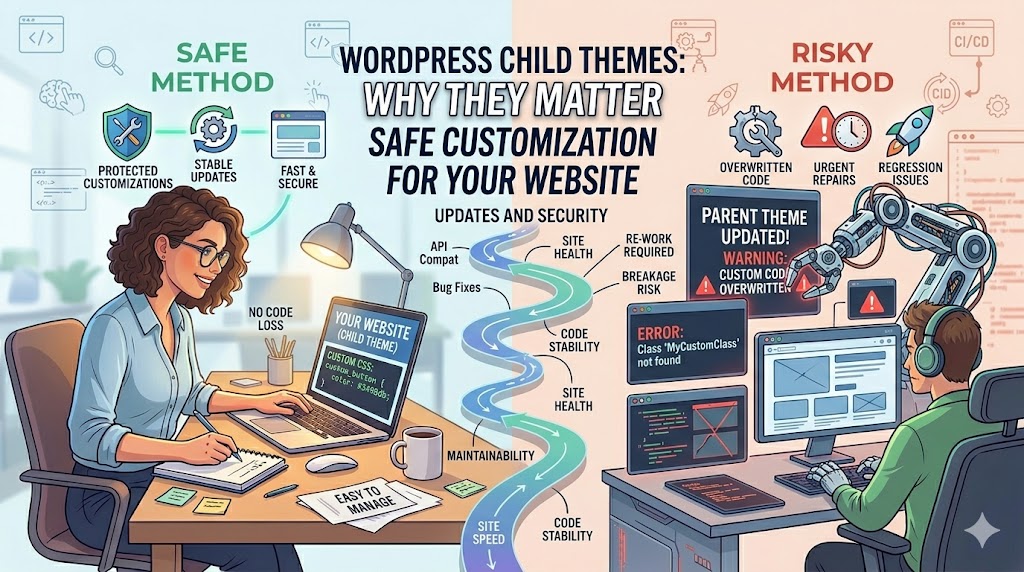
The number one mistake that many newbies make on WordPress is editing the files associated with your theme.
It works fine until an update wipes out everything that you’ve edited, leaving you with default settings again.
And that’s precisely why child themes were created for WordPress.
In this tutorial, you will learn about child themes in WordPress – what they are, why do you need them, how they work and when to use one. If you want to do it right, then read on.
What Is a WordPress Child Theme?
A child theme is a separate WordPress theme that inherits functionality and styling from another theme—called the parent theme.
In simple terms:
- Parent Theme = Main theme
- Child Theme = Safe customization layer
* The child theme allows you to customize your website without editing the original theme files directly.
Why Child Themes Matter So Much
Without a child theme:
* Your custom changes disappear when the theme updates.
With a child theme:
- Theme updates remain safe
- Custom code stays intact
- Website maintenance becomes easier
This is why experienced developers almost always use child themes for custom WordPress projects.
Real-World Example
Without a Child Theme:
You edit:
header.php
Then the theme updates.
* Your edits are overwritten.
With a Child Theme:
Your custom files remain separate from the parent theme.
* Updates become much safer.
How Child Themes Work
A child theme inherits:
- Styles
- Templates
- Functions
- Layouts
from the parent theme.
You only override the parts you want to customize.
Basic Child Theme Structure
A WordPress child theme usually includes:
style.css
functions.php
screenshot.png
Example Folder:
/wp-content/themes/mytheme-child/
* Simple structure, huge long-term benefits.
Step 1: Create the Child Theme Folder
Inside:
/wp-content/themes/
Create a new folder.
Example:
astra-child
* Naming usually follows:
parenttheme-child
Step 2: Create the style.css File
Inside your child theme folder:
/*
Theme Name: Astra Child
Template: astra
*/
Important:
The Template name must exactly match the parent theme folder name.
* This connects the child theme to the parent theme.
Step 3: Create functions.php
This file loads the parent theme styles.
Example:
<?php
function my_theme_enqueue_styles() {
    wp_enqueue_style('parent-style',
    get_template_directory_uri() . '/style.css');
}
add_action('wp_enqueue_scripts',
'my_theme_enqueue_styles');
?>
* This ensures the parent theme styling still works properly.
Step 4: Activate the Child Theme
Go to:
Appearance → Themes
Then:
- Find your child theme
- Click Activate
* Your site now safely uses the child theme.
What Should You Customize in a Child Theme?
Child themes are ideal for:
- CSS changes
- Template modifications
- Custom PHP functions
- Layout adjustments
* Any customizations you want to preserve during updates.
When You May NOT Need a Child Theme
Not every website requires one.
You may skip a child theme if:
- You’re only changing colors/fonts in the Customizer
- Your theme has built-in customization options
- You use lightweight visual settings only
* But for code-level customization, child themes are strongly recommended.
Child Themes vs Page Builders
Modern page builders reduce the need for child themes in some cases.
But child themes still matter for:
- Advanced customization
- Custom templates
- PHP edits
- Performance-focused development
* Developers still rely on them heavily.
Common Child Theme Mistakes
a. Editing the Parent Theme Directly
This is the biggest mistake beginners make.
b. Incorrect Template Name
If the template value is wrong, the child theme won’t work.
c. Forgetting to Load Parent Styles
This can break your design completely.
d. Overcomplicating the Child Theme
Keep customizations organized and minimal.
Benefits of Using Child Themes
Safer Updates
Easier Maintenance
Cleaner Custom Development
Better Long-Term Scalability
* Child themes create a more professional WordPress workflow.
Real-World Developer Insight
Many beginner websites work fine without child themes—until:
- The theme updates
- A redesign happens
- Custom code grows larger
That’s usually when people realize:
* Child themes save massive headaches later.
FAQ
Do I always need a child theme in WordPress?
Not always. But if you plan to edit code or templates, it’s highly recommended.
Will a child theme slow down my website?
No. Child themes have minimal performance impact.
Can I use a child theme with page builders?
Yes. Many developers combine both approaches.
Summary
WordPress child themes are one of the smartest ways to customize websites safely.
Key takeaway:
- Never edit the parent theme directly
- Use child themes for long-term flexibility
- Protect your customizations during updates
* A little setup now can prevent major problems later.
Get started
If you’re customizing a WordPress website:
- Create a child theme first
- Move custom code into the child theme
- Keep your parent theme update-safe
👉 This small step creates a cleaner, safer, and more scalable WordPress workflow.
Start using WordPress child themes and customize your website the professional way