Website speed , kind of matters a lot for how people feel, also for search rankings and conversions. Like honestly, even a tiny delay of one second in page loading can push bounce rates up and make engagement kinda drop. So one of the easiest WordPress upgrades is minifying CSS and JavaScript, just doing that can shrink files and speed up what the browser has to fetch.
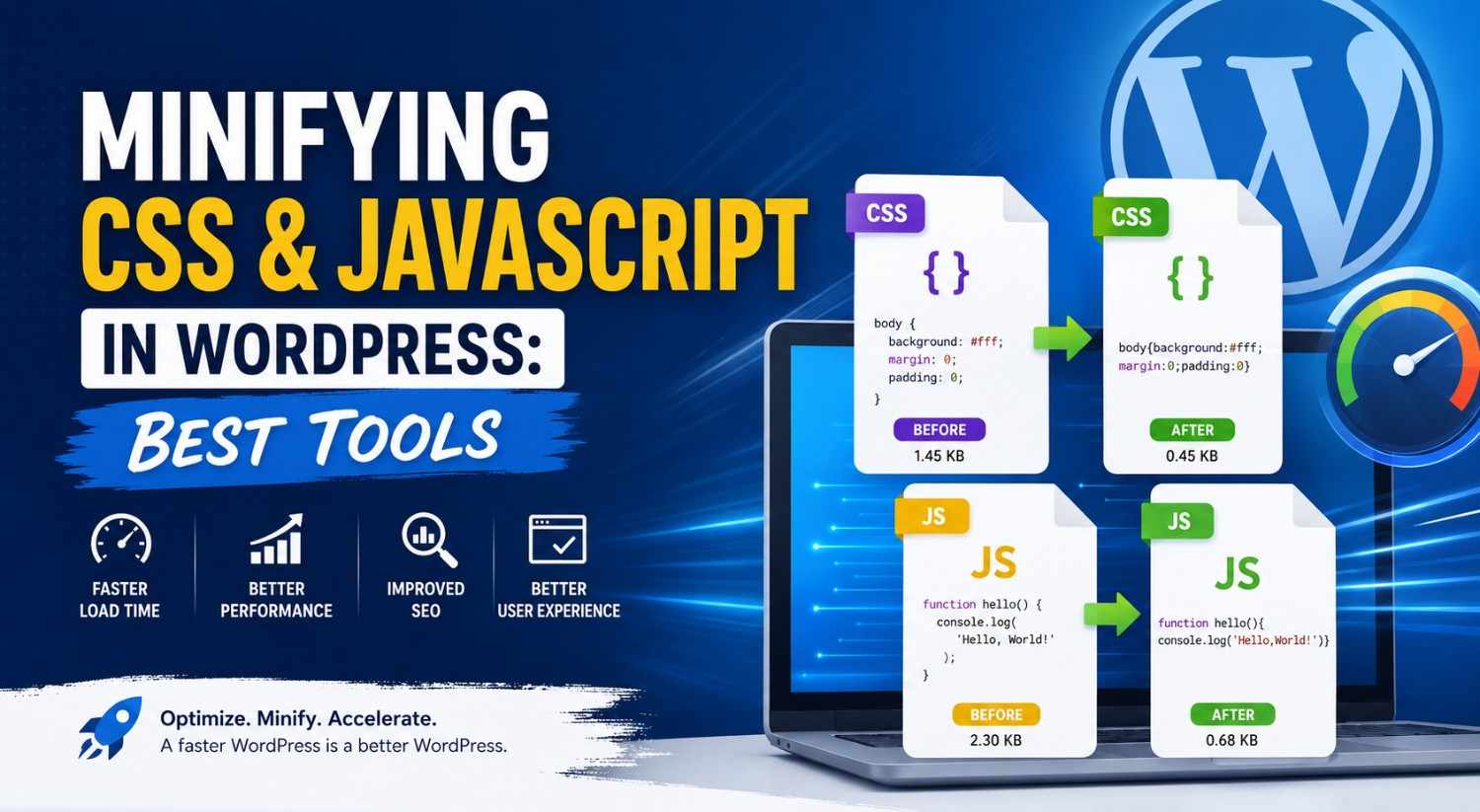
Minification basically strips out extra stuff like spaces, comments, line breaks and other characters that are not needed for the code to run. The result is smaller file sizes, browsers load the assets sooner, and the page looks (and feels) faster.
In this guide, you’ll get the lowdown on what CSS and JavaScript minification really is, why it pays off and, which WordPress tools can automate it without you touching every snippet manually.
What Is CSS and JavaScript Minification?
Minification is the act of “compressing” code by removing parts that aren’t required for execution. It does not change what the code does, it just makes it leaner.
Before Minification
body {
background-color: #ffffff;
margin: 0;
padding: 0;
}
After Minification
body{background-color:#fff;margin:0;padding:0}
Both styles behave the same, but the minified one is smaller so it tends to load faster, and yeah, the browser actually gets the win there.
The same idea applies to JavaScript, where comments, spacing, and formatting are removed so the file is not as heavy.
Why Minify CSS and JavaScript in WordPress?
Minifying usually brings multiple performance advantages, such as:
Faster Page Load Times
Smaller assets mean less bandwidth and quicker downloads.
Improved SEO
Search engines do care about page speed. Faster websites often show better visibility.
Better User Experience
If the site responds quickly, visitors are more likely to stay and keep clicking.
Reduced Server Load
Less data to serve means your hosting environment can breathe a bit more.
How Minification Works in WordPress
Most people don’t sit there manually editing CSS or JavaScript files. Instead, plugins handle it behind the scenes.
A minification plugin typically:
1. Merges multiple CSS files, so there are fewer requests
2. Merges multiple JavaScript files, so there are fewer requests
3. Strips unnecessary code characters
4. Produces optimized versions of the files
5. Delivers the optimized assets to visitors
Usually the whole thing runs automatically once you turn it on, no special coding required.
Best Tools for Minifying CSS and JavaScript in WordPress
1. WP Rocket
WP Rocket is one of the better-known premium performance plugins for WordPress.
Key Features
* CSS minification
* JavaScript minification
* File combination
* Lazy loading
* Database optimization
* Cache preloading
How to Enable Minification
1. Install and activate WP Rocket.
2. Go to Settings → WP Rocket.
3. Open the File Optimization area.
4. Enable:
* Minify CSS Files
* Minify JavaScript Files
5. Save changes.
Best For
Owners who want an all-in-one performance solution, with less tinkering.
2. Autoptimize
Autoptimize is a widely used free optimization plugin, and it does the job for many sites.
Key Features
* CSS optimization
* JavaScript optimization
* HTML minification
* Google Fonts optimization
* Asset aggregation
Setup Steps
1. Install Autoptimize from the WordPress Plugin Directory.
2. Navigate to Settings → Autoptimize.
3. Tick:
* Optimize JavaScript Code
* Optimize CSS Code
* Optimize HTML Code
4. Save settings.
Best For
People who want something solid, without paying for it.
3. LiteSpeed Cache
LiteSpeed Cache is a strong option when your hosting runs on LiteSpeed servers.
Key Features
* CSS minification
* JavaScript minification
* Image optimization
* Page caching
* Object caching
Configuration
Go to:
LiteSpeed Cache → Page Optimization
Then enable:
* CSS Minify
* JS Minify
* CSS Combine
* JS Combine
Best For
Websites that are actually hosted on LiteSpeed environments.
4. W3 Total Cache
W3 Total Cache is basically a longtime performance plugin, many WordPress folks have used it for ages.
Key Features
* Browser caching
* Minification support
* CDN integration
* Database caching
Setup Process
1. Install W3 Total Cache.
2. Go to Performance → Minify.
3. Turn on Minify.
4. Choose automatic mode.
5. Save settings.
Best For
Users who want more detailed control over performance settings.
5. Fast Velocity Minify
Fast Velocity Minify is more focused on the minification part, rather than being a full caching suite.
Key Features
* CSS minification
* JavaScript minification
* File merging
* Asset management
Advantages
* Lightweight plugin
* Straightforward setup
* Effective optimization
Best For
Anyone who wants minification, and not a bunch of extra caching features.
Testing Your Website After Minification
Testing is not optional, always check your site after you enable minification. Some themes and plugins depend on specific JavaScript timing, ordering and execution. If something breaks, it may show up as layout issues, missing functionality, or strange UI behavior.
Recommended Testing Tools
* Google PageSpeed Insights
* GTmetrix
* Pingdom Website Speed Test
While testing, review:
* Page load speed
* Contact forms
* Navigation menus
* Sliders
* Checkout pages
* Mobile responsiveness
If an issue shows up, exclude the related file (or the specific optimization setting) from the minification rules, and test again.
Common Minification Mistakes to Avoid
Minifying Everything at Once
Start with CSS minification first. Test your site, then enable JavaScript minification second. This approach makes it easier to pinpoint what caused an issue.
Ignoring Compatibility Issues
Some plugins don’t like combined or deferred files, so they can misbehave when minification is aggressive.
Using Multiple Optimization Plugins
If you run multiple caching/minification plugins together, you can get conflicts. It’s better to pick one main tool, and keep the settings consistent.
Forgetting to Clear Cache
After changing optimization settings, clear caches. Otherwise, visitors may still get old versions of the CSS or JavaScript and the “fix” won’t show up.
Best Practices for Maximum Performance
To get the best results , try mixing minification with other tweaks and optimizations, not just doing one thing. In a practical sense , it usually pays off more when the whole setup is tuned together:
* Turn on page caching
* Use a Content Delivery Network , CDN
* Make sure images are optimized before you upload them
* Enable lazy loading
* Cut down on unnecessary plugins
* Choose a dependable WordPress hosting provider
Yes minification on its own can help, but when you combine a few methods together, the gains tend to be bigger , and it feels faster overall.
Minifying CSS and JavaScript is one of the easiest and most effective ways to speed up a WordPress website. Since minification shrinks file sizes , it helps reduce loading times while also supporting a smoother user experience. And honestly, that kind of improvement usually shows up in SEO and overall website performance too.
If you are new to this, Autoptimize is a solid free starting point. If you want a more complete premium approach, WP Rocket brings stronger optimization features that go beyond simple minification. Meanwhile, LiteSpeed Cache is often a great match for sites running on LiteSpeed servers.
Want to push your WordPress speed up? Start by installing a trusted optimization plugin like Autoptimize or WP Rocket, then turn on CSS/JavaScript minification, and finally test using PageSpeed Insights. Little improvements today can translate into quicker loads, better rankings, and happier visitors tomorrow.