
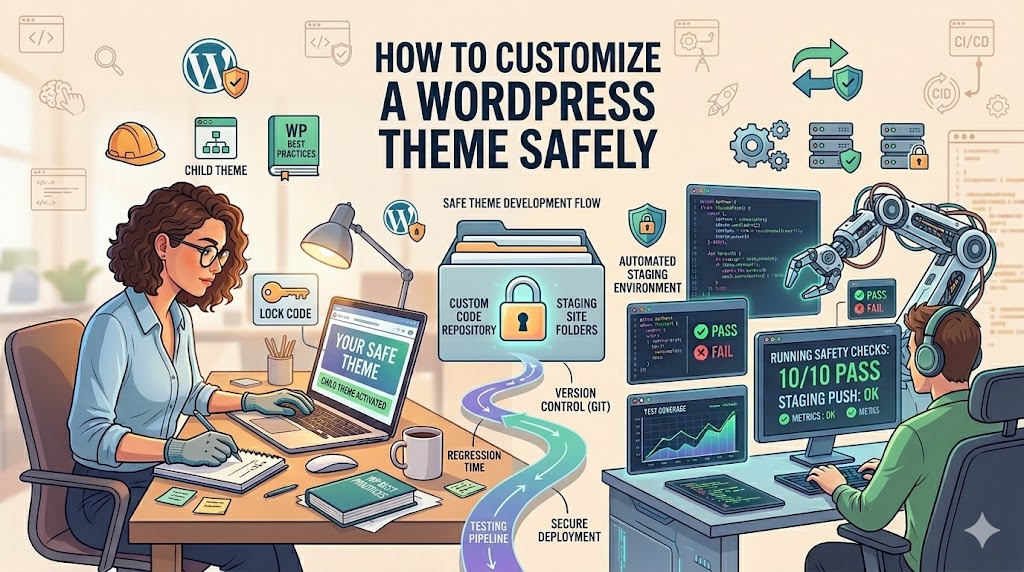
Customizing a theme for your WordPress website is perhaps one of the most fascinating activities out there. You get to do whatever you want – switch layouts, colors, branding and even develop an exceptional user experience.
However, it’s also risky.
For example, many novice users tend to manually change things in theme folders, use dangerous plugins, or perform any other actions without creating a backup – only to find out that the update wiped out all their customization in a matter of seconds.
In this guide, we are going to share tips on how to customize a theme for your WordPress website safely.
Why Safe Theme Customization Matters
A WordPress theme controls:
- Your website layout
- Design structure
- Typography
- Colors
- Header and footer styling
When customized incorrectly, problems can appear quickly:
- Broken layouts
- Slow performance
- Plugin conflicts
- Lost customizations after updates
* Safe customization protects both your design and your website stability.
Step 1: Never Edit the Parent Theme Directly
This is the most important rule beginners ignore.
If you directly edit:
style.cssfunctions.php- template files
inside the main theme folder, your changes may disappear during updates.
Bad Example:
wp-content/themes/main-theme/functions.php
* Theme updates overwrite modified files.
Step 2: Use a Child Theme Instead
A child theme safely inherits functionality from the parent theme while allowing custom modifications.
Benefits of Child Themes:
- Safe updates
- Easier customization
- Better maintainability
- Reduced risk of losing changes
Example Child Theme Structure:
wp-content/themes/my-child-theme/
Basic Child Theme CSS:
/*
Theme Name: My Child Theme
Template: parent-theme
*/
* This is the professional way to customize WordPress themes.
Step 3: Backup Your Website Before Any Changes
Never customize a live website without backups.
Always backup:
- Files
- Database
- Media uploads
- Theme settings
* Even experienced developers make mistakes.
Recommended Backup Frequency:
- Before major updates
- Before editing code
- Before installing new plugins
Step 4: Use the WordPress Customizer First
WordPress already includes safe customization tools.
Go to:
Appearance → Customize
Here you can modify:
- Colors
- Typography
- Menus
- Widgets
- Header images
* This is much safer than editing files manually.
Step 5: Avoid Overloading Your Theme with Plugins
Many users install dozens of plugins just to customize appearance.
This often causes:
- Slow loading speed
- Plugin conflicts
- Security vulnerabilities
* Simpler websites usually perform better.
Ask Yourself:
“Does this plugin solve a real problem?”
Step 6: Use Custom CSS Instead of Editing Core Files
Small design changes are often safer with custom CSS.
Example:
.site-title {
  font-size: 32px;
  color: #222;
}
Add CSS Here:
Appearance → Customize → Additional CSS
* This keeps customizations organized and update-safe.
Step 7: Test Changes on a Staging Site
Professional developers rarely edit production websites directly.
A staging site allows you to:
- Test updates safely
- Preview customizations
- Catch errors early
* This prevents live website disasters.
Step 8: Be Careful with Page Builders
Page builders can make customization easier, but they also add complexity.
Common problems:
- Bloated code
- Slow performance
- Mobile responsiveness issues
* Use only what you actually need.
Step 9: Keep Mobile Responsiveness in Mind
A customization that looks great on desktop may fail on mobile devices.
Always test:
- Navigation menus
- Buttons
- Typography
- Spacing
- Images
Example Responsive CSS:
@media (max-width: 768px) {
  .hero-title {
    font-size: 28px;
  }
}
* Mobile usability affects both SEO and conversions.
Step 10: Understand Which Files Control What
Before editing theme files, understand their purpose.
| File | Purpose |
|---|---|
| style.css | Design styling |
| functions.php | Theme functionality |
| header.php | Header layout |
| footer.php | Footer structure |
| single.php | Blog post template |
* Editing the wrong file can break your layout instantly.
Step 11: Use Version Control for Large Projects
Advanced developers often use Git for theme customization.
Benefits:
- Track changes
- Restore previous versions
- Collaborate safely
* Especially useful for agency or client websites.
Common WordPress Theme Customization Mistakes
a. Editing Live Sites Without Testing
One coding error can:
- Break layouts
- Create white screens
- Crash pages
* Always test safely first.
b. Installing Too Many Design Plugins
More plugins usually means:
- More scripts
- Slower performance
- Higher conflict risk
c. Ignoring Performance Optimization
Customization should not sacrifice speed.
Heavy features often include:
- Sliders
- Excessive animations
- Large video backgrounds
* Good design should still load fast.
d.Forgetting About SEO
Customizations can accidentally hurt SEO by:
- Breaking heading structure
- Slowing load speed
- Hiding important content
* Design and SEO should work together.
Real-World Example
Unsafe Customization:
A website owner edits the parent theme directly.
Then:
- Theme updates run automatically
- Custom code disappears
- Layout breaks completely
Safe Customization:
The same edits are added through:
- Child theme
- Custom CSS
- Staging environment
Result:
- Safe updates
- Stable website
- Easier maintenance
* Professional workflows prevent expensive mistakes.
How Theme Updates Affect Customizations
Theme developers regularly release updates for:
- Security patches
- Compatibility improvements
- Performance optimization
If you customize incorrectly:
* Updates may erase everything.
That’s why child themes are essential.
Should You Customize with Code or Plugins?
The answer depends on your needs.
Use plugins for:
- Forms
- SEO
- Security
- Backups
Use code/custom CSS for:
- Layout tweaks
- Styling improvements
- Small functionality adjustments
* Avoid using plugins for tiny visual changes.
Safe Theme Customization Checklist
Before making changes:
- Backup website
- Use child theme
- Test on staging site
- Keep plugins minimal
- Optimize for mobile
- Check performance afterward
* Simple habits prevent major issues later.
Beginner-Friendly Customization Tips
If you’re new to WordPress:
- Start with small changes
- Learn basic CSS first
- Avoid editing PHP unless necessary
- Use lightweight themes
* Simplicity usually creates better websites.
FAQ
What is a WordPress child theme?
A child theme safely inherits styling and functionality from a parent theme while protecting customizations during updates.
Can I customize WordPress without coding?
Yes. The WordPress Customizer and modern page builders allow many visual changes without code.
Is it safe to edit theme files directly?
No. Direct edits to parent themes can be lost during updates and may break your site.
Why do WordPress customizations disappear after updates?
Because edits were made directly to the parent theme instead of using a child theme.
Summary
Customizing a WordPress theme safely is less about flashy design tricks and more about using the right workflow.
Key takeaway:
- Use child themes
- Backup before changes
- Avoid plugin overload
- Test before publishing
* Smart customization keeps your website stable, secure, and easy to maintain long term.
What Should You Do Next? (CTA)
Before making your next WordPress customization:
- Create a backup
- Set up a child theme
- Test changes on staging first
- Focus on speed and usability—not just appearance
👉 Small safe changes today can prevent major website problems tomorrow.
Start customizing your WordPress theme the professional way in 2026 and build a faster, safer, more reliable website