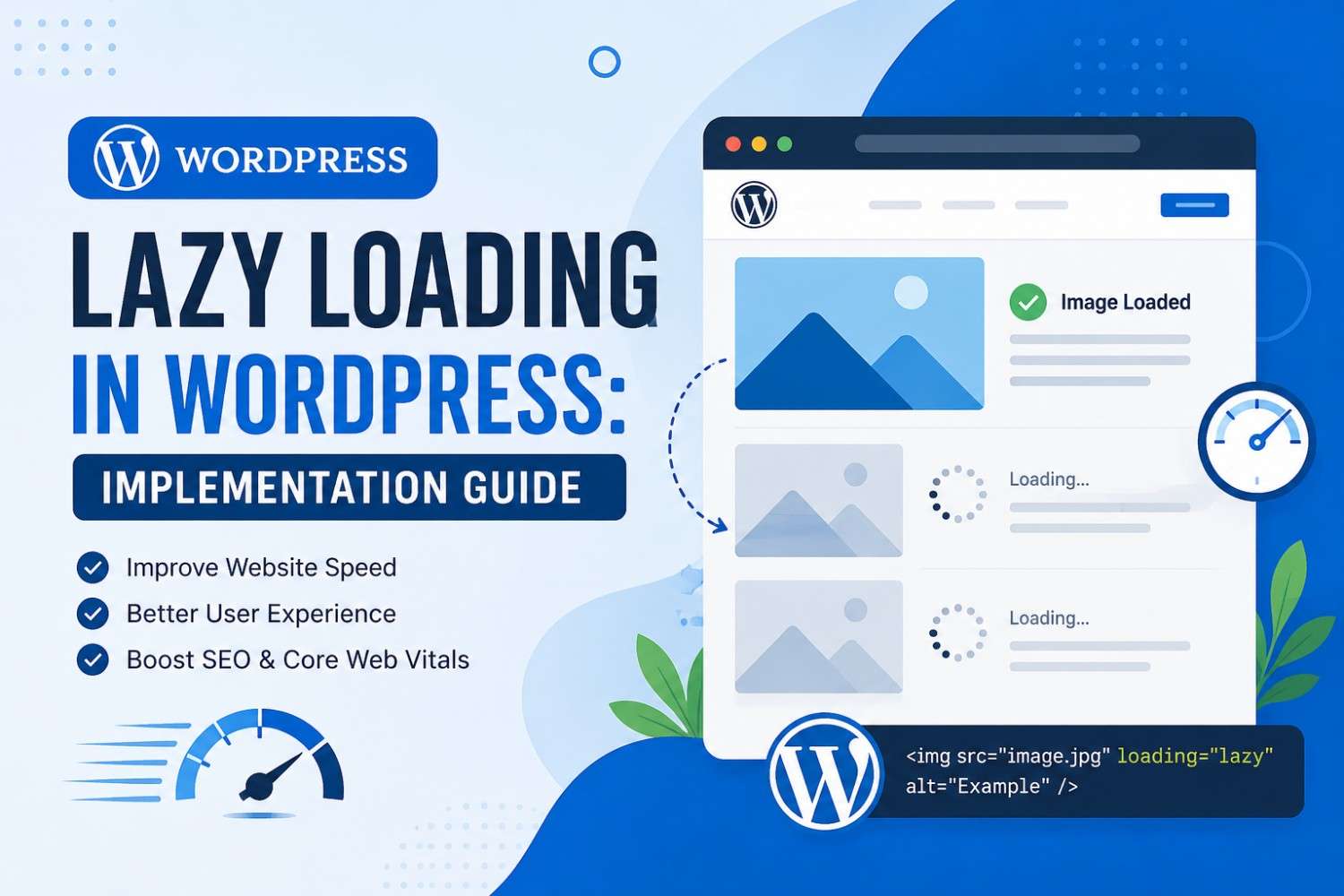
You know it already but still, website speed really affects how people feel about a page, how Google looks at you, and even how often people convert. One of the more helpful moves you can make is lazy loading in WordPress. Basically, it delays the fetching of images, videos, and other media until theyre actually needed. That means your first load is lighter, and your overall performance tends to look better on both desktop and mobile.
In this walkthrough, you’ll get a clear idea of what lazy loading is, why it matters, and how to add it using WordPress built-in features or plugins, plus a manual option if you like doing things directly.
What Is Lazy Loading?
Lazy loading is one of those performance techniques where content is loaded only when it’s about to show up on the screen. So instead of downloading every single image and media file the moment the page opens, the browser waits until you scroll close to that content area.
Benefits of Lazy Loading
* Quicker initial page rendering
* Less bandwidth use, especially on mobile
* Better Core Web Vitals results
* Smoother user experience
* Solid SEO support
* Less pressure on your server
If your site has tons of images, galleries, or embedded video blocks, lazy loading can make a noticeable difference.
How Lazy Loading Works in WordPress
More recent WordPress versions already include native support. WordPress typically adds the `loading=”lazy”` attribute to image tags automatically, so the browser knows not to load them immediately.
Example
Without lazy loading:
<img src="example-image.jpg" alt="WordPress Image">
With lazy loading:
<img src="example-image.jpg" alt="WordPress Image" loading="lazy">
So the browser holds back, then loads the image as it gets close to entering the users viewport.
Method 1: Use WordPress Native Lazy Loading
Starting with WordPress 5.5, lazy loading is generally on by default for images.
Step 1: Verify your WordPress version
Go to:
Dashboard → Updates
Make sure you are on WordPress 5.5 or a later version.
Step 2: Inspect your image markup
Open your website in any browser.
1. Right click on an image
2. Choose Inspect
3. Look for:
loading="lazy"
If you see it, then native lazy loading is already active.
Method 2: Implement Lazy Loading with a Plugin
If you want more control, plugins can handle extra types of media (like iframes) and add options beyond the native behavior.
Popular lazy loading plugins
* WP Rocket
* LiteSpeed Cache
* Smush
* a3 Lazy Load
* Perfmatters
Step 1: Install the plugin
Go to:
Plugins → Add New
Search:
a3 Lazy Load
Then:
Install → Activate
Step 2: Configure settings
After activation, open:
Settings → a3 Lazy Load
Enable lazy loading for things like:
* Images
* Videos
* Iframes
* Gravatars
Step 3: Test performance
Run tests both before and after you enable the feature. Good options are:
* Google PageSpeed Insights
* GTmetrix
* Pingdom Website Speed Test
Aim to compare results, not just check one metric once.
Screenshot suggestion
Capture a screenshot of the plugin settings page, showing image plus iframe lazy loading turned on.
Method 3: Add Lazy Loading Manually
Some developers prefer adding lazy loading inside a custom theme or custom template files.
Add lazy loading to images
Example:
<img src="<?php echo get_the_post_thumbnail_url(); ?>"
alt="<?php the_title(); ?>"
loading="lazy">
Add lazy loading to custom HTML
<img src="banner.jpg" loading="lazy" alt="Website Banner">
This can work great when you are building a theme, and you want full control over how markup is output.
Lazy Loading Videos and Embedded Content
Embeds, iframes, and video blocks can slow down the page, fast. A lazy approach usually helps, because you avoid pulling in heavy resources immediately.
Example
Instead of loading a YouTube embed right away:
<iframe src="https://www.youtube.com/embed/example"></iframe>
Use lazy loading:
<iframe src="https://www.youtube.com/embed/example" loading="lazy"></iframe>
Now the browser waits until the viewer scrolls near that section before downloading video-related resources.
Common Lazy Loading Mistakes to Avoid
1. Lazy loading above-the-fold images
Images that are visible right when the page opens should not always be lazy loaded. For example:
* Hero banners
* Main featured images
* Logo images
If you delay these, you can hurt perceived speed, and sometimes even damage Core Web Vitals.
2. Using several optimization plugins at once
Installing multiple speed tools can create overlaps, duplicated tasks, and weird conflicts. Pick one approach, then tune it carefully.
3. Not checking Core Web Vitals after changes
After enabling lazy loading, always retest. The key numbers are:
* Largest Contentful Paint (LCP)
* First Contentful Paint (FCP)
* Cumulative Layout Shift (CLS)
4. Forgetting mobile testing
Many visitors are on mobile. Test on smartphones and tablets so lazy loading behaves correctly with smaller screens, different scroll behavior, and slower networks.
How to Confirm Lazy Loading Is Actually Working
Option 1: Browser inspection
Inspect an image element and confirm it contains:
loading="lazy"
Option 2: Network tab checks
Open Developer Tools.
Then go to:
Network → Img
Scroll down the page and watch what loads. Images should usually appear (and download) only once they get close to the viewport.
Option 3: Google PageSpeed Insights
Run your site in PageSpeed Insights and review the suggestions related to images, loading behavior, and lazy loading. It wont be perfect but it’s a strong validation step.
SEO Benefits of Lazy Loading
When lazy loading is set up properly, it supports SEO indirectly by improving page speed and user experience. Search engines pay attention to signals like:
* Faster load times
* Lower bounce rates
* Better Core Web Vitals outcomes
* Improved mobile friendliness
And when you pair lazy loading with image compression , browser caching, and content delivery networks (CDNs) then it turns into this kind of key piece of a bigger WordPress performance approach—like not the only thing, but definitely a big one.
Lazy loading is one of the simplest and also most effective ways to boost WordPress website performance. By postponing the loading of images, videos, and embedded content until it’s actually needed, you can cut down on page load time, make the user experience feel faster, and back up stronger SEO outcomes.
WordPress already offers native lazy loading, but using plugins or custom setups gives you more leeway for advanced tuning. No matter if you run a blog, a business website, or an eCommerce store , turning on lazy loading can support a more fast , efficient browsing flow.
Are you ready to optimize your WordPress site even more? Start with enabling lazy loading , then mix it with image compression, browser caching, and a CDN in order to push your speed , and help your search engine performance at the same time.