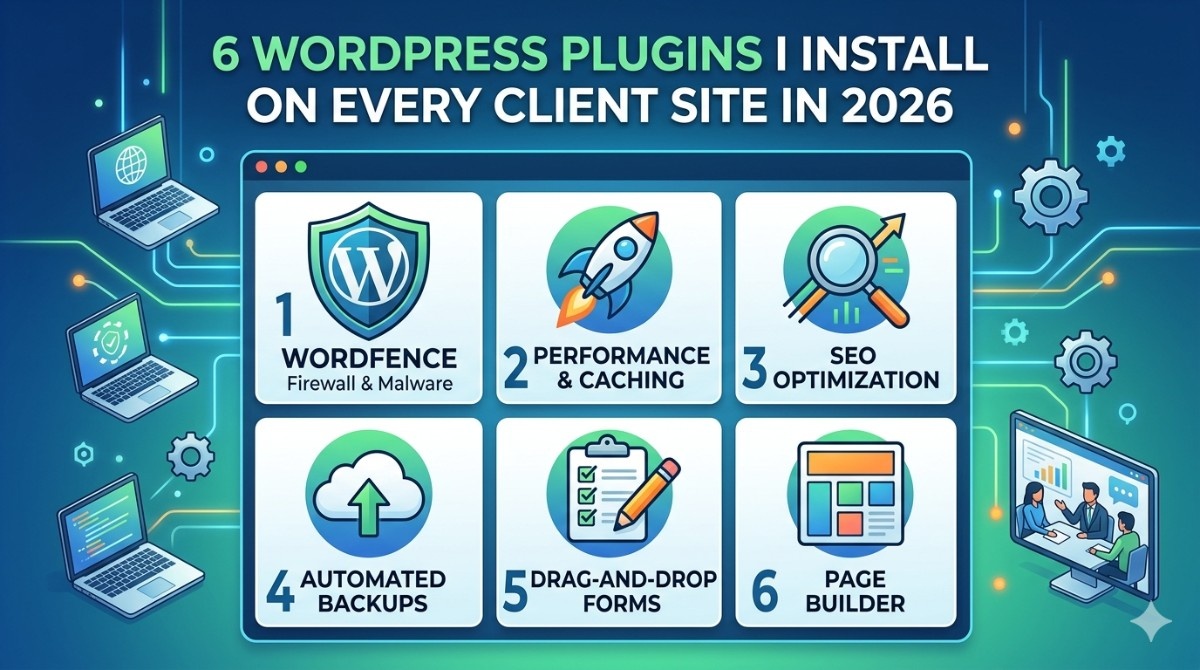
After developing many WordPress sites, a pattern starts emerging where certain plugins automatically improve your speed, safety, and manageability.
They aren’t some randomly selected plugins; rather, these are my go-to options for 2026 for ensuring good performance, SEO, security, and scalability right off the bat.
So, if you’re looking for a dependable solution and don’t want to waste time experimenting with hundreds of other plugins, here’s what you should consider.
Why Your Plugin Stack Matters
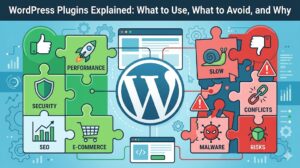
The wrong plugins:
- Slow down your site
- Create security risks
- Cause conflicts
The right plugins:
- Improve performance
- Boost SEO
- Save development time
* The goal is not “more plugins”—it’s the right plugins.
1. Performance Plugin (Caching + Speed Optimization)
Every site needs speed optimization.
What it handles:
- Page caching
- File minification
- Lazy loading
* Without caching, your server does extra work on every request.
Example (Manual Lazy Loading):
<img src="image.webp" loading="lazy" alt="optimized image">Why I install it:
- Immediate speed boost
- Better Core Web Vitals
- Improved user experience
2. SEO Plugin (On-Page Optimization)
SEO should be built into your workflow from the start.
What it helps with:
- Meta titles & descriptions
- XML sitemaps
- Keyword optimization
* It ensures every page is search-friendly.
Example:
<meta name="description" content="Best WordPress services for fast websites">Why I install it:
- Consistent SEO structure
- Easy optimization for clients
- Better ranking potential
3. Security Plugin (Protect Your Site)
Security isn’t optional—especially for client sites.
Features:
- Firewall protection
- Malware scanning
- Login security
* WordPress sites are common targets, even small ones.
Why I install it:
- Prevent hacks
- Reduce downtime
- Protect client data
4. Backup Plugin (Your Safety Net)
Things break. Updates fail. Servers crash.
A backup plugin ensures:
- Automatic backups
- Easy restoration
- Offsite storage
* If something goes wrong, you can recover in minutes.
Why I install it:
- Peace of mind
- Essential for client projects
- Saves hours of recovery work
5. Form Plugin (Lead Generation)
Every business website needs a way to capture leads.
Use cases:
- Contact forms
- Quote requests
- Booking inquiries
Example:
<input type="email" placeholder="Enter your email" required>* Keep forms simple for better conversions.
Why I install it:
- Direct lead generation
- Easy customization
- Integrates with email tools
6. Image Optimization Plugin (Performance Booster)
Images are often the biggest cause of slow websites.
What it does:
- Compress images
- Convert to WebP
- Optimize loading
* Faster images = faster site.
Why I install it:
- Improves load time instantly
- Reduces server load
- Better mobile performance
Bonus: Minimal Plugin Philosophy
One mistake I see often is:
* Installing too many plugins
My rule:
- Only install what you actually need
- Avoid duplicate functionality
- Test impact on performance
* A lean site is always faster and more stable.
Real-World Setup Example
Typical Client Stack:
- 1 Performance plugin
- 1 SEO plugin
- 1 Security plugin
- 1 Backup plugin
- 1 Form plugin
- 1 Image optimization plugin
* That’s it. Clean, efficient, and powerful.
Common Mistakes to Avoid
- Installing multiple caching plugins
- Ignoring security
- Skipping backups
- Using outdated plugins
- Not updating regularly
* These issues can break your site or slow it down.
FAQ
How many plugins should a WordPress site have?
As few as possible—only what’s necessary.
Do plugins slow down WordPress?
Yes, poorly optimized or excessive plugins can affect performance.
What is the most important plugin?
Caching/performance plugins usually have the biggest impact.
Summary
A strong plugin stack makes your WordPress site:
- Faster
- Safer
- More SEO-friendly
- Easier to manage
Key takeaway:
* It’s not about quantity—it’s about choosing the right tools.
What Should You Do Next? (CTA)
Audit your current website today:
- Remove unnecessary plugins
- Add missing essentials (performance, SEO, security)
- Test your site speed
* Small improvements here can lead to big gains in performance and rankings.