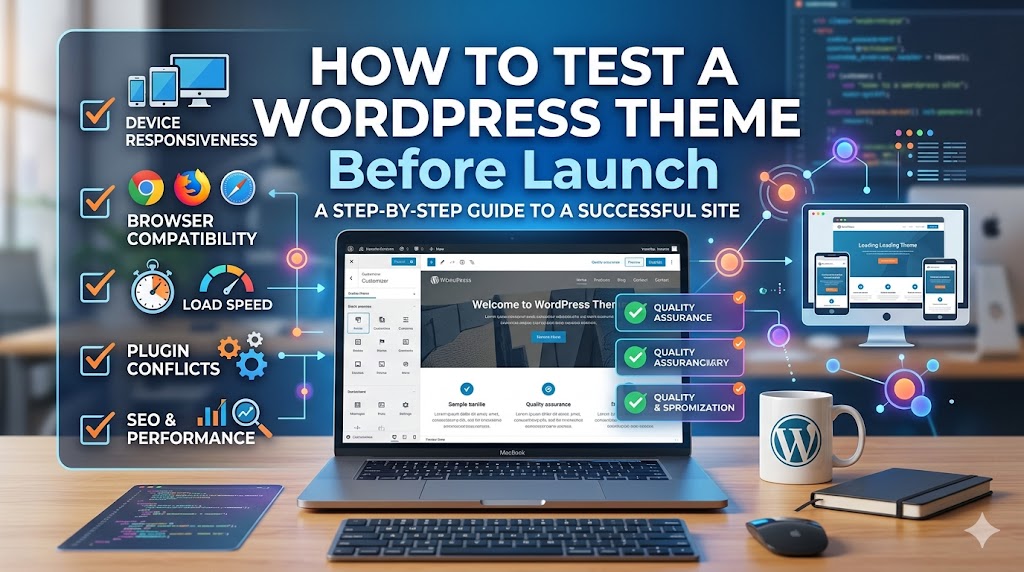
Building a new WordPress site is thrilling. With all those design and content creation stages, publishing and moving on seems like the obvious next step.
But here’s the thing, many site owners overlook a super important part: testing.
Your awesome-looking theme might show bugs only when real visitors come in. Layouts could break, load times could be terrible, mobile viewing might suck, and there could be other technical headaches you only spot post-launch – fixing them then can be quite a hassle.
So, this guide wants to help folks run tests before launching their WordPress themes. That way, you’ll give users a fantastic experience right from the start.
No matter if you’re working on a blog, an online store, or a portfolio, this little guide will help you skip the pitfalls and make sure everything goes smoothly for your first-time visitors.
Why Testing a WordPress Theme Matters
Many people assume that if a theme looks good, it’s ready to launch.
In reality, appearance is only one part of the equation.
A properly tested WordPress theme should be:
- Responsive on all devices
- Fast-loading
- Compatible with major browsers
- Accessible to all users
- Compatible with plugins
- SEO-friendly
- Free from layout issues
Poor testing often results in:
- High bounce rates
- Poor search rankings
- Lost leads and sales
- Negative user experiences
- Increased support requests
A few hours spent testing can prevent weeks of troubleshooting later.
Step 1: Test Responsiveness on Multiple Devices
Mobile traffic now accounts for the majority of website visits.
A theme that works perfectly on a desktop may break completely on smaller screens.
Check Your Theme On:
- iPhone devices
- Android phones
- Tablets
- Laptops
- Large desktop monitors
Pay close attention to:
- Text readability
- Navigation menus
- Button sizes
- Image scaling
- Page spacing
Example CSS for Responsive Layouts
.container {
    width: 100%;
    max-width: 1200px;
    margin: auto;
}
Responsive layouts help maintain usability across all screen sizes.
Step 2: Test Navigation and User Flow
Website visitors should always know where they are and where to go next.
Review every menu and navigation element carefully.
Verify:
- Main navigation menu
- Footer links
- Sidebar navigation
- Mobile hamburger menus
- Internal links
Imagine you’re a first-time visitor.
Can you easily find:
- Contact information?
- Services?
- Pricing?
- Blog content?
- Checkout pages?
If not, your navigation needs improvement.
Step 3: Check Website Speed
Website speed directly impacts:
- SEO
- User experience
- Conversions
- Bounce rates
Even a beautiful theme can fail if it’s slow.
Test:
- Homepage loading speed
- Blog pages
- Service pages
- Product pages
- Contact forms
Optimize Images
Example:
<img src="hero-image.webp" loading="lazy" alt="Website banner">
Using WebP images and lazy loading significantly improves performance.
Step 4: Review Typography and Readability
A common mistake in WordPress themes is prioritizing style over readability.
Visitors should never struggle to read content.
Review:
- Font size
- Line spacing
- Contrast ratios
- Paragraph spacing
- Heading hierarchy
Good typography creates a more professional experience and increases engagement.
Step 5: Test All Forms
Forms are often the most important conversion elements on a website.
Yet they are also among the most commonly broken features.
Test:
- Contact forms
- Quote request forms
- Newsletter forms
- Login forms
- Checkout forms
Verify:
- Emails are delivered correctly
- Validation messages appear
- Success confirmations work
Example:
<input type="email" placeholder="Enter your email address">
A broken form can mean lost leads without you even realizing it.
Step 6: Check Browser Compatibility
Not everyone uses the same browser.
Your theme should work consistently across:
- Chrome
- Firefox
- Safari
- Edge
Things to review:
- Layout consistency
- Font rendering
- Menu functionality
- JavaScript interactions
Browser differences can cause unexpected visual problems.
Step 7: Test Plugin Compatibility
Most WordPress websites rely on plugins.
Even well-designed themes can experience conflicts.
Common Plugin Categories
- SEO plugins
- Security plugins
- Caching plugins
- Backup plugins
- Form plugins
- WooCommerce
Install the plugins you plan to use and test every major feature before launch.
Step 8: Verify WooCommerce Compatibility
If you’re running an online store, WooCommerce testing is essential.
Check:
- Product pages
- Cart functionality
- Checkout process
- Payment gateways
- Mobile shopping experience
Run several test purchases before launching.
This helps identify issues customers might encounter.
Step 9: Test Accessibility
Accessibility is no longer optional.
Your website should be usable by everyone.
Review:
- Keyboard navigation
- Color contrast
- Alt text
- Form labels
- Focus states
Example:
<img src="service-image.jpg" alt="Digital marketing consultation">
Accessible websites often perform better for both users and search engines.
Step 10: Check SEO Basics
A theme should support strong SEO fundamentals.
Review:
- Heading structure
- Meta data
- URL structure
- Internal linking
- Mobile usability
Proper Heading Structure
<h1>Main Page Title</h1>
<h2>Section Heading</h2>
<h3>Subsection Heading</h3>
Proper hierarchy helps both users and search engines understand content.
Step 11: Review Image Display
Images often cause unexpected layout issues.
Check:
- Image alignment
- Mobile resizing
- Gallery displays
- Featured images
- Retina display quality
Large images should scale smoothly without breaking layouts.
Step 12: Test Error Pages
Most websites ignore error pages until users encounter them.
Review:
- 404 pages
- Search results pages
- Empty category pages
A helpful 404 page can keep visitors engaged rather than losing them completely.
Step 13: Review Security Settings
Before launch, verify:
- Strong admin passwords
- Security plugin installation
- Login protection
- SSL certificate activation
Visitors expect secure websites.
Security testing protects both your business and your users.
Step 14: Check Footer Content
The footer is often overlooked.
Review:
- Contact details
- Copyright information
- Social media links
- Privacy policy links
- Terms and conditions
Broken footer links reduce credibility.
Step 15: Perform a Complete User Journey Test
This is one of the most valuable tests you can perform.
Pretend you’re a customer.
Start on the homepage and attempt to:
- Learn about services
- Navigate the site
- Fill out a form
- Complete a purchase (if applicable)
- Contact the business
This process often uncovers issues that individual tests miss.
Common WordPress Theme Testing Mistakes
a. Only Testing on Desktop
Most visitors are using mobile devices.
b. Ignoring Performance
A beautiful theme means little if it loads slowly.
c. Skipping Form Testing
Forms directly impact conversions.
d. Testing Alone
Ask colleagues or friends to browse the website.
Fresh eyes often identify overlooked problems.
e. Launching Too Quickly
Rushed launches usually create avoidable issues.
Real-World Example
A local service business redesigned its WordPress website and launched without testing.
Within a week they discovered:
- Mobile menu failures
- Contact form issues
- Broken service page layouts
After completing a structured testing process:
- Bounce rate decreased
- Lead submissions increased
- Mobile engagement improved
The difference wasn’t the design.
It was the testing.
Final Pre-Launch Checklist
Before launch, confirm:
✔ Mobile responsiveness
✔ Fast loading speed
✔ Working forms
✔ Browser compatibility
✔ SEO settings
✔ Security configuration
✔ Plugin compatibility
✔ WooCommerce functionality
✔ Accessibility compliance
✔ Complete user journey testing
Frequently Asked Questions
How long should WordPress theme testing take?
For most websites, thorough testing takes several hours to a few days depending on complexity.
Should I test before installing plugins?
Test both before and after plugin installation to identify potential conflicts.
Is mobile testing really necessary?
Absolutely. Mobile traffic now represents the majority of web traffic worldwide.
Can a theme pass testing and still have issues later?
Yes, but comprehensive testing dramatically reduces the chances of major post-launch problems.
Summary
Testing a WordPress theme before launch is one of the most important steps in website development.
It helps you identify performance issues, usability problems, plugin conflicts, mobile responsiveness concerns, and SEO weaknesses before visitors encounter them.
The best WordPress websites are not simply designed well—they are tested thoroughly.
Taking the time to perform a complete pre-launch review will save time, improve user experience, and create a stronger foundation for long-term success.
Get Started
Before launching your WordPress website, create a structured testing checklist and review every page, feature, and interaction carefully.
Start with mobile responsiveness, performance, forms, and SEO, then move through the remaining steps one by one.
A successful website launch isn’t about publishing quickly.
It’s about launching confidently, knowing your visitors will enjoy a fast, reliable, and professional experience from the very first click.