An inefficient WordPress website is not only a hindrance to its visitors but also a waste of traffic, leads, and SEO rankings. Why is that so challenging? Simply because most optimization problems only become clear after conducting a proper website analysis.
The following article will provide you with detailed information on how to conduct a website performance audit with a practical example in WordPress.
What Is a WordPress Performance Audit?
A WordPress performance audit is the process of analyzing your website to find what’s slowing it down.
Instead of randomly installing plugins, you:
- Measure performance
- Identify issues
- Fix them systematically
* Think of it like debugging your website speed.
Step 1: Test Your Website Speed (Baseline First)
Before fixing anything, you need real data.
Tools to use:
- Google PageSpeed Insights
- Lighthouse (Chrome DevTools)
- GTmetrix
What to check:
- Load time
- Largest Contentful Paint (LCP)
- Time to First Byte (TTFB)
Example: Lighthouse Report
Performance Score: 62
LCP: 3.8s
TTFB: 1.2s
* This tells you your site is slow—and where to focus.
Step 2: Identify What’s Slowing Your WordPress Site
Common culprits:
- Heavy themes
- Too many plugins
- Large images
- Slow hosting
- Render-blocking scripts
Step 3: Optimize Images (Biggest Quick Win)
Large images are one of the top reasons for slow websites.
Fix it:
- Compress images (WebP format)
- Use lazy loading
- Resize before uploading
Example:
<img src="image.webp" loading="lazy" alt="optimized image">* This alone can reduce load time drastically.
Step 4: Enable Caching (Massive Performance Boost)
Caching stores static versions of your pages.
Types of caching:
- Page caching
- Browser caching
- Object caching
Example (.htaccess):
<IfModule mod_expires.c>
  ExpiresActive On
  ExpiresByType image/webp "access plus 1 year"
</IfModule>
* Result: Faster repeat visits.
Step 5: Minify CSS, JS, and HTML
Remove unnecessary spaces and reduce file sizes.
Example:
Before:
function test() {
    console.log("Hello World");
}
After:
function test(){console.log("Hello World")}* Smaller files = faster load times.
Step 6: Reduce Plugin Bloat
Too many plugins = slower site.
What to do:
- Remove unused plugins
- Replace heavy plugins with lightweight alternatives
- Avoid duplicate functionality
* Rule: If you don’t use it, delete it.
Step 7: Use a CDN (Content Delivery Network)
A CDN delivers your content from servers closer to users.
Benefits:
- Faster global load times
- Reduced server load
- Better uptime
Step 8: Upgrade Your Hosting
Cheap hosting is often the biggest bottleneck.
Signs you need better hosting:
- High TTFB
- Frequent downtime
- Slow admin panel
* Switching hosting can improve speed instantly.
Step 9: Optimize Database
Your WordPress database collects junk over time.
Clean it:
- Remove post revisions
- Delete spam comments
- Optimize tables
Step 10: Eliminate Render-Blocking Resources
Scripts and CSS that block page rendering slow things down.
Fix:
- Defer JavaScript
- Load CSS efficiently
Example:
<script src="script.js" defer></script>Step 11: Use Lightweight Themes
Heavy themes = slow performance.
Choose:
- Minimal themes
- Performance-focused themes
* Avoid overly complex page builders when possible.
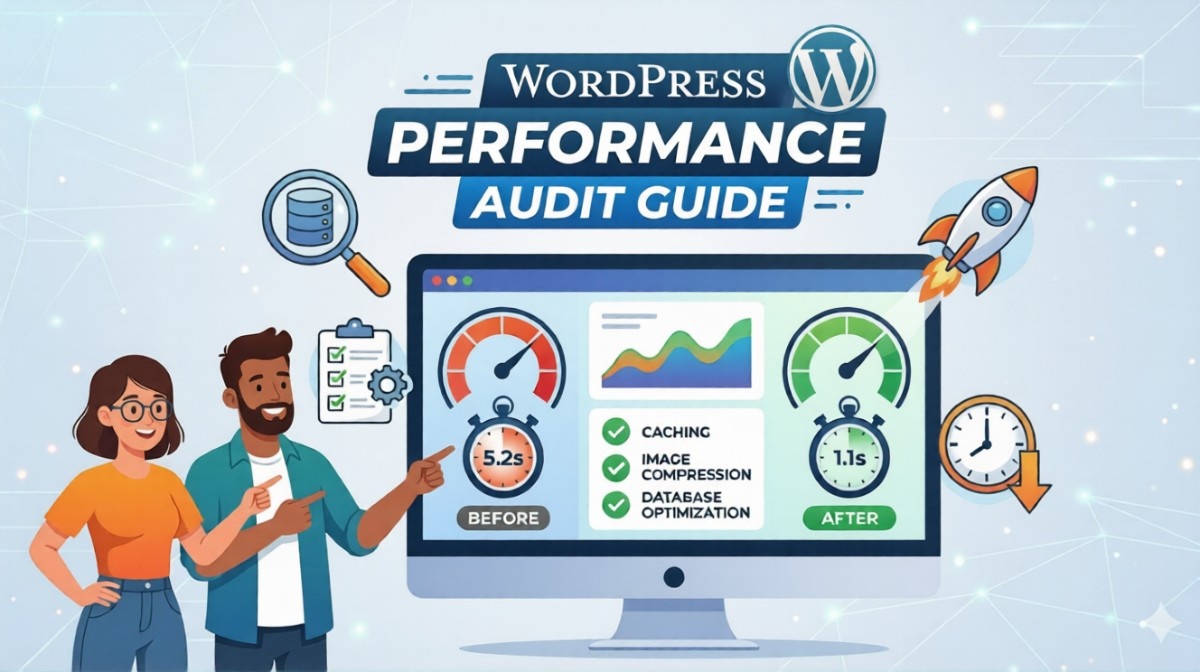
Real-World Performance Fix Example
Before Optimization:
- Load Time: 4.5s
- LCP: 3.8s
After Optimization:
- Load Time: 1.8s
- LCP: 1.9s
* That’s a massive improvement with simple changes.
FAQ
Why is my WordPress site slow?
Usually due to large images, too many plugins, or slow hosting.
What is the fastest way to speed up WordPress?
Optimize images, enable caching, and use a CDN.
Does hosting affect speed?
Yes, hosting plays a major role in performance and load time.
Summary
A WordPress performance audit helps you fix speed issues the right way.
Key takeaways:
- Always test before fixing
- Focus on images, caching, and hosting first
- Remove unnecessary plugins
- Optimize scripts and database
What Should You Do Next? (CTA)
Don’t try to fix everything at once.
Start with this:
- Run a speed test
- Optimize your images
- Enable caching
Then move step by step through the rest.